Skip to content

Queue management and ticket system features

The Reserve Digital ticket system covers the whole in-person service flow: issue, call, serve, track, manage and administer. Every feature is in every plan, including the free one.

Issue

Ticket issuing: kiosk, thermal printer and QR code

The ticket is where service starts, and customers can take it in whatever way suits your space best. Reserve Digital issues tickets at a self-service kiosk, on the counter's thermal printer or by QR code, always in the right queue and priority.

A27

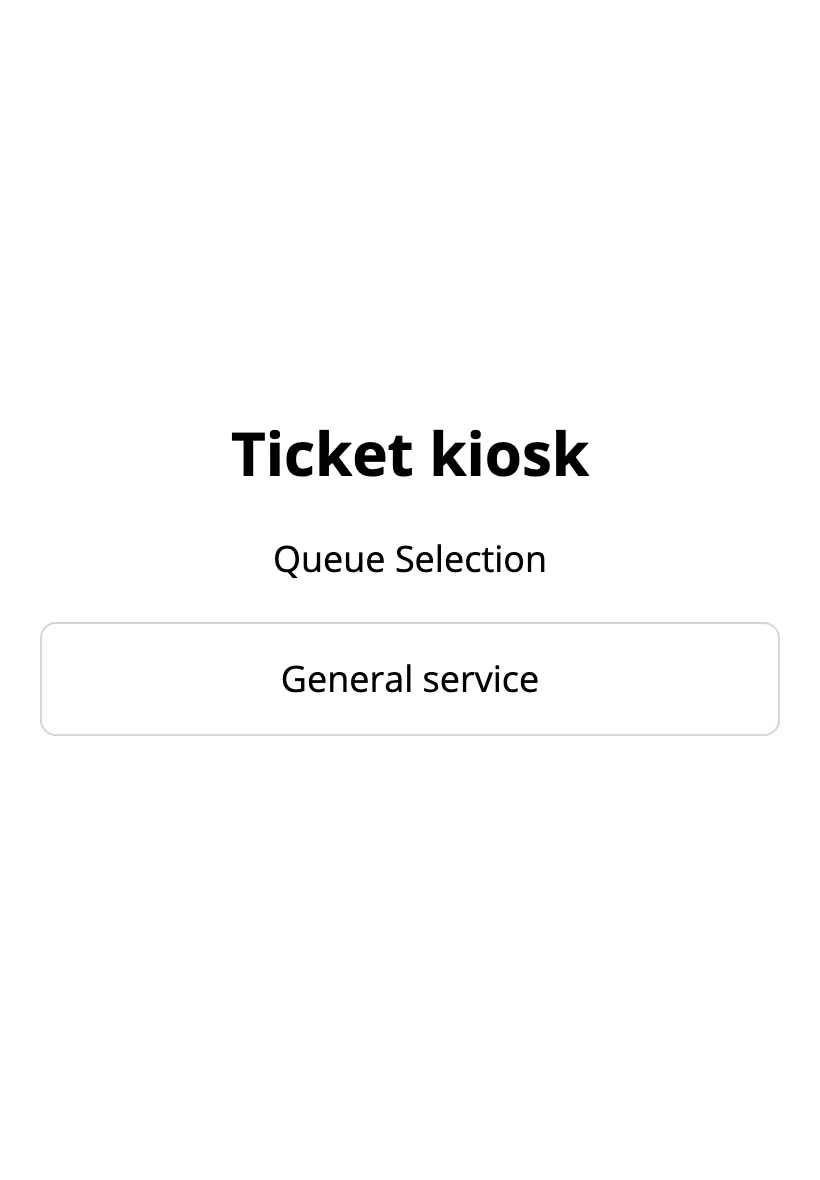
Self-service kiosk in the browser

The self-service kiosk opens from a link in the browser of a tablet or a computer with a screen, so there is no dedicated hardware to buy. Customers tap the service they need and the ticket goes straight into the right queue. You choose which queues appear on the kiosk; the rest stay available to staff only. The kiosk link is public and needs no login, so you can replace it with a new one or turn it off at any time. On a Windows computer with the print app, the ticket comes out on paper; on a tablet, it shows on screen with a QR code for tracking.

Ticket printing on a thermal printer

If you prefer paper tickets, Reserve Digital prints on standard thermal printers through a light Windows app installed on the counter or kiosk computer. Every printed ticket carries a QR code. Customers keep the paper in hand and, if they want, follow their position on the phone. The rest of the system stays 100% web: only printing needs the app, and you can go paperless whenever you like.

QR code tickets, no app needed

The QR code virtual queue needs no app. Customers scan the QR code shown on the kiosk or printed on the ticket and open the ticket page in their own phone's browser. There they see their position in the queue and the estimated wait. There is no sign-up and no personal data: the ticket is identified by its code alone. That removes the hurdle for people who just want to be served and leaves them free to sit down, grab a coffee or run a quick errand nearby, coming back as their turn gets close.

Optional for the customer: anyone who would rather not use the phone follows the call on the TV.

Ticket numbering with prefixes

Each priority has a letter prefix, and each queue can have its own. With dual prefix turned on, the ticket combines the queue prefix, the priority prefix and the number: queue FI with priority CAR gives FICAR1. With it turned off, the ticket reads CAR1. A live preview shows how the ticket will look while you set it up, so nothing surprises you on the panel. When you want to start from zero, for example at the start of the day, restart the group numbering: the group's pending tickets are canceled and the panel is cleared.

Real Reserve Digital self-service totem screen with the service choice
Real Reserve Digital screens, shown with demo data.

Call

Ticket calling: TV panel with sound and voice

The call panel turns any screen with a browser into a ticket display. Calls are both visual and audible, with a voice announcement, and you choose what each screen shows.

P12P12A26N09A25

TV ticket call panel

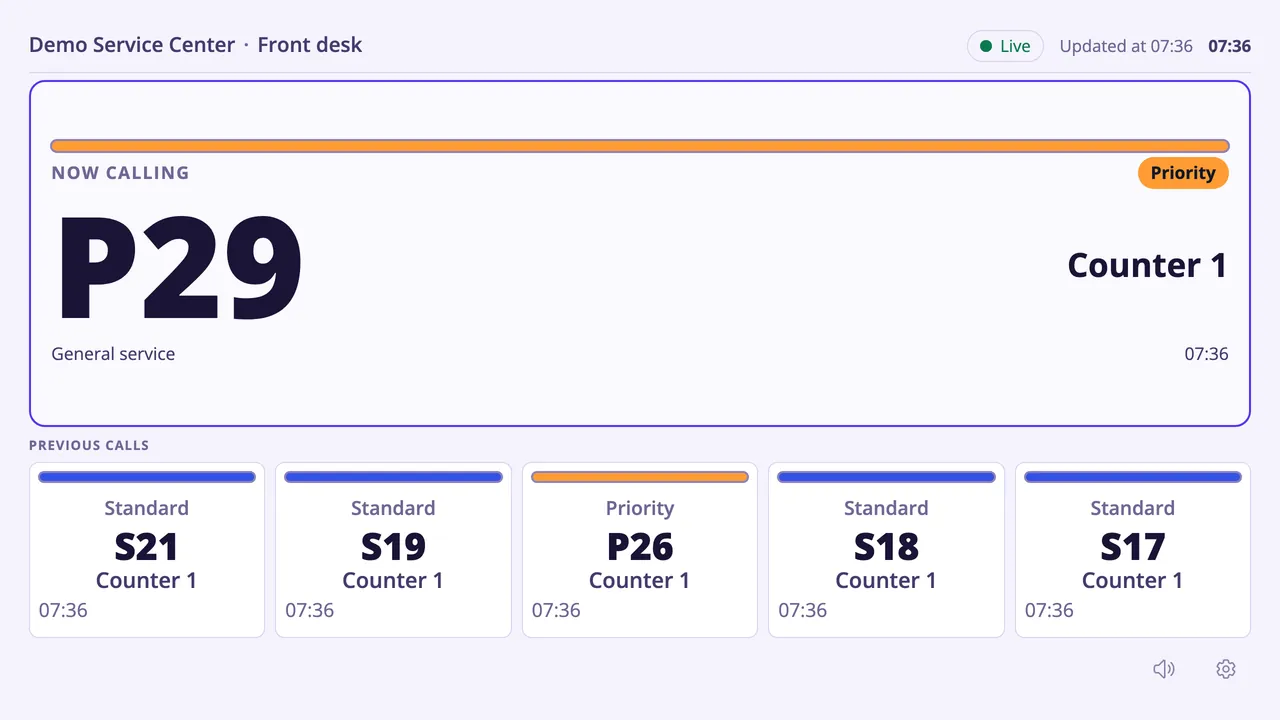
The call panel opens from a link in the browser of any Smart TV, monitor or computer connected to a screen. There is no special hardware and nothing to install: open the link, go full screen and calls appear in real time. The called ticket is shown large, with the counter the customer should go to, and previous calls are listed on screen. Open the panel on several screens, each with its own settings, and adjust the volume right on the panel.

Calls with a chime and voice announcement

Every call plays a chime to catch the waiting room's attention. With the spoken announcement turned on for the queue group, the panel also reads the call out loud, in a single sentence with the ticket and the counter: “Ticket A12, please go to Counter 3”. The announcement is switched on or off per group, so you can use voice at the front desk and just the chime in a quieter area. People who are distracted, looking at their phone or far from the TV still notice the call.

Optional: the voice announcement turns on or off per queue group.

Boards per queue, per group or company-wide

Each board shows the scope you pick. The queue board shows calls from a single queue; the group board brings together the queues of a department or branch; the company board shows every branch at once, with a badge naming the branch on each call. All of them show the history of previous calls and a recall count, such as “Call 2”, so customers know the ticket was called again. Volume, full screen and the other options are saved per screen, so the front desk TV and the hallway TV can have different settings.

Panel accessibility based on accessibility guidelines

Accessibility guidelines describe how information should reach people with different levels of sight and hearing. The Reserve Digital panel applies those guidelines to each call: the information reaches two senses, sight and hearing, and the spoken announcement is a single imperative sentence with the ticket and the counter. Priority colors go through a contrast check based on the light reflectance difference (ΔLRV). The call history and the recall count help anyone who missed the first call find their place.

Real Reserve Digital TV call panel with the ticket being called and the previous calls
Real Reserve Digital screens, shown with demo data.

Your panel, your way

Customize the TV call panel, with nothing to install

Pick the layout, show your company's YouTube video, a picture slideshow and notices on screen, and check it all in a live preview before you save. Each TV also picks a light or dark theme.

Try it: change the options and watch the panel change.

TV theme
Layout
Media
Messages
Clock
Board for
Interactive illustration with demo data.

Everything you can adjust

  • Company or group

    Two layouts

    The ticket large at the top, or the ticket on the left with the history and media on the right, for wide TVs.

  • Company or group

    YouTube video

    Paste a YouTube video link and it plays on a loop, muted, so it never drowns out the call chime.

  • Company or group

    Picture slideshow

    Up to 20 PNG, JPEG or WebP pictures, changing at the pace you pick, from 2 seconds to 1 hour. Good for notices, offers and menus.

  • Company or group

    Message banner

    Up to 50 notices that take turns in a banner at the top or the bottom of the screen.

  • Company or group

    Clock

    Time only, or the weekday and the time. It follows the server clock, so every TV shows the same time.

  • Company or group

    Company default, group overrides

    The company default applies to every board. A queue group can have its own settings, which the boards of its queues follow.

  • Company or group

    Live preview

    The preview is the panel itself, with your own counter and queue names. What you save shows up right away on the open TVs, with no reload.

  • On each TV

    Settings of each screen

    Light, dark or automatic theme, language, volume, full screen and how many previous calls are shown.

  • Per queue group

    Sound and voice

    Every call plays a chime. The spoken announcement of the ticket turns on or off per queue group.

  • Per priority

    Priority colors

    Each priority has its own color on the called ticket and in the history, so customers spot their ticket faster.

You choose what to use

None of this is mandatory. Turn on only what fits your service:

  • Media, messages and the weekday on the clock: without them, the panel shows just the tickets.
  • Voice announcement: on or off per queue group, and the chime still plays.
  • Service rating: you turn the 1 to 5 star request on the ticket page on or off.
  • Invitation to review on Google: it only shows with the rating on and your Google review link saved, and you can turn it off.
  • Queue and company boards: turn on only the ones you use, and off whenever you want.
  • Phone tracking: customers scan the QR code if they want to; anyone else waits by the TV.

Real screens

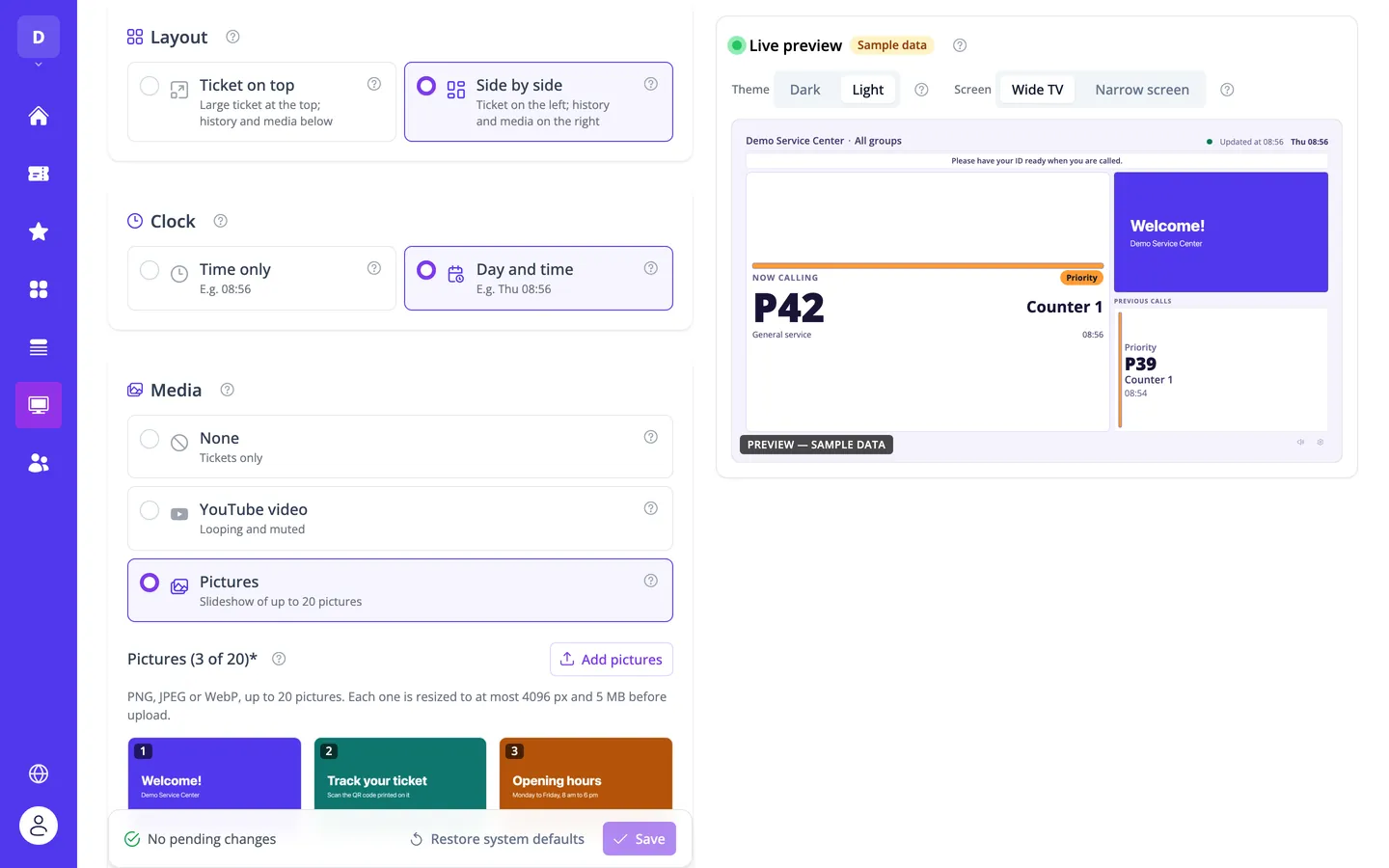
Real Reserve Digital panel display screen: layout, clock and media options next to the live preview of the panel in the light theme
Panel display: every change shows in the preview before you save.
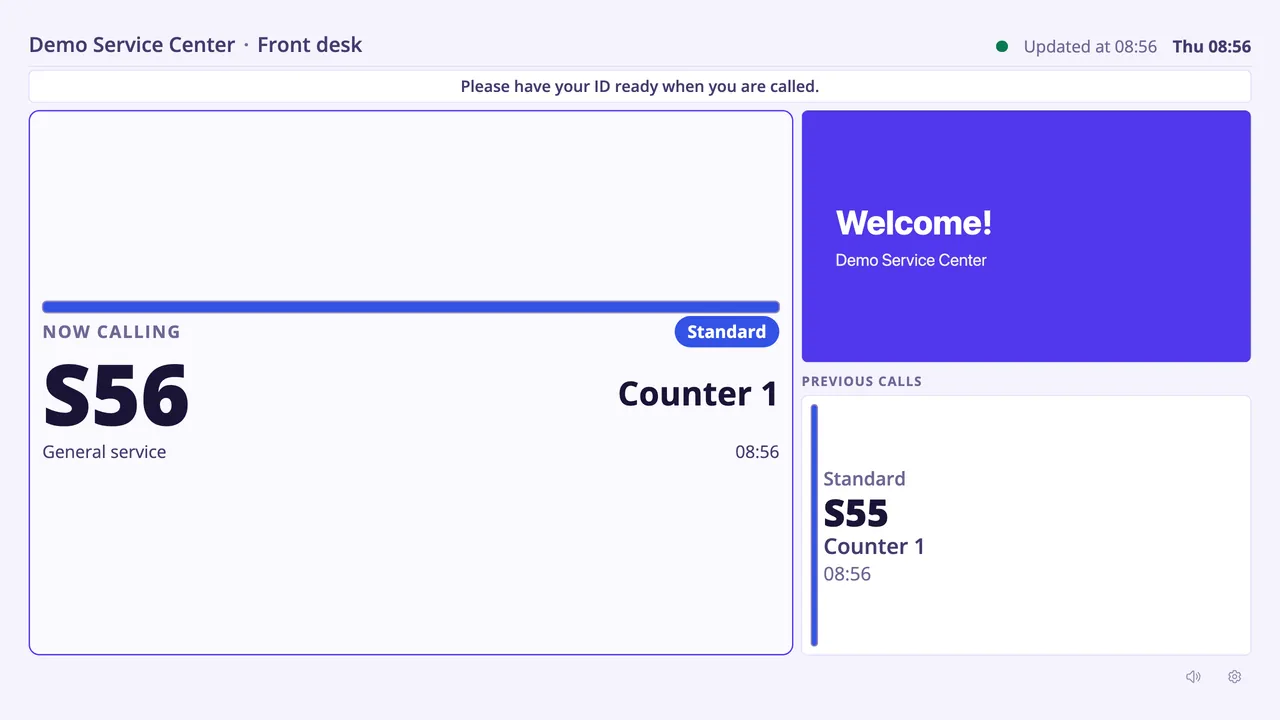
Real call panel in the light theme, side by side: the called ticket on the left, a slideshow picture and the previous call on the right, and a message banner at the top
The result on the TV: side by side, with pictures, a message and the weekday on the clock.

Real Reserve Digital screens, shown with demo data.

Serve

Counter service: calls, queues and priorities

On the staff screen, each counter calls, serves and forwards tickets in a few clicks. The priorities you define set the call order, with no arguments at the desk.

A28P13A29N10A30

Counters linked to queues and people

In Reserve Digital, a counter is any service point: a desk, a table, a room or a doctor's office. Each counter is linked to the queues it serves and to the people who can operate it, so staff see only what belongs to them. A counter can also be marked as priority-first, calling priority tickets before the rest. It is a simple way to give seniors, pregnant women and people with disabilities preference at one service point while the other counters keep working the regular line.

Call next, call again and redirect

On the counter screen, staff call the next ticket from any queue linked to the counter in one click, and the order follows your priorities. If the customer doesn't show up, call again: the panel repeats the call and shows the recall count. When the customer arrives, start the service; when it's done, finish it. If the person is in the wrong place, redirect the ticket or move it to another queue, with no need to take a new ticket. Tickets that won't be served can be canceled, and everything is logged in the history.

Configurable priorities and priority service

Priorities are set per queue group, with a color, a prefix and a call order. You create the ones your operation needs, such as priority service for seniors, pregnant and nursing women, people with disabilities and people carrying infants. The color marks the priority on the panel and on the staff screen, and the prefix appears on the ticket itself. The order decides who is called first when tickets of different priorities are waiting, and the rule is the same for the whole team.

Ticket details and history

Every ticket has a details screen with its queue, priority and current status. The history logs what happened to it from issue to the end of service: calls, recalls, redirects, queue changes and cancellation. With that, staff can answer with facts when a customer asks why they waited, and managers can see the path a ticket took before it was served. It is also a practical way to check that priorities are being called in the order you set.

Real Reserve Digital counter screen with the call-next button and the ticket list
Real Reserve Digital screens, shown with demo data.

Track

Virtual queue: ticket tracking and ratings

With the QR code, the line moves to the customer's phone. They follow the ticket in the browser, with no app and no sign-up, and rate the service at the end.

A27321

Ticket tracking page on the phone

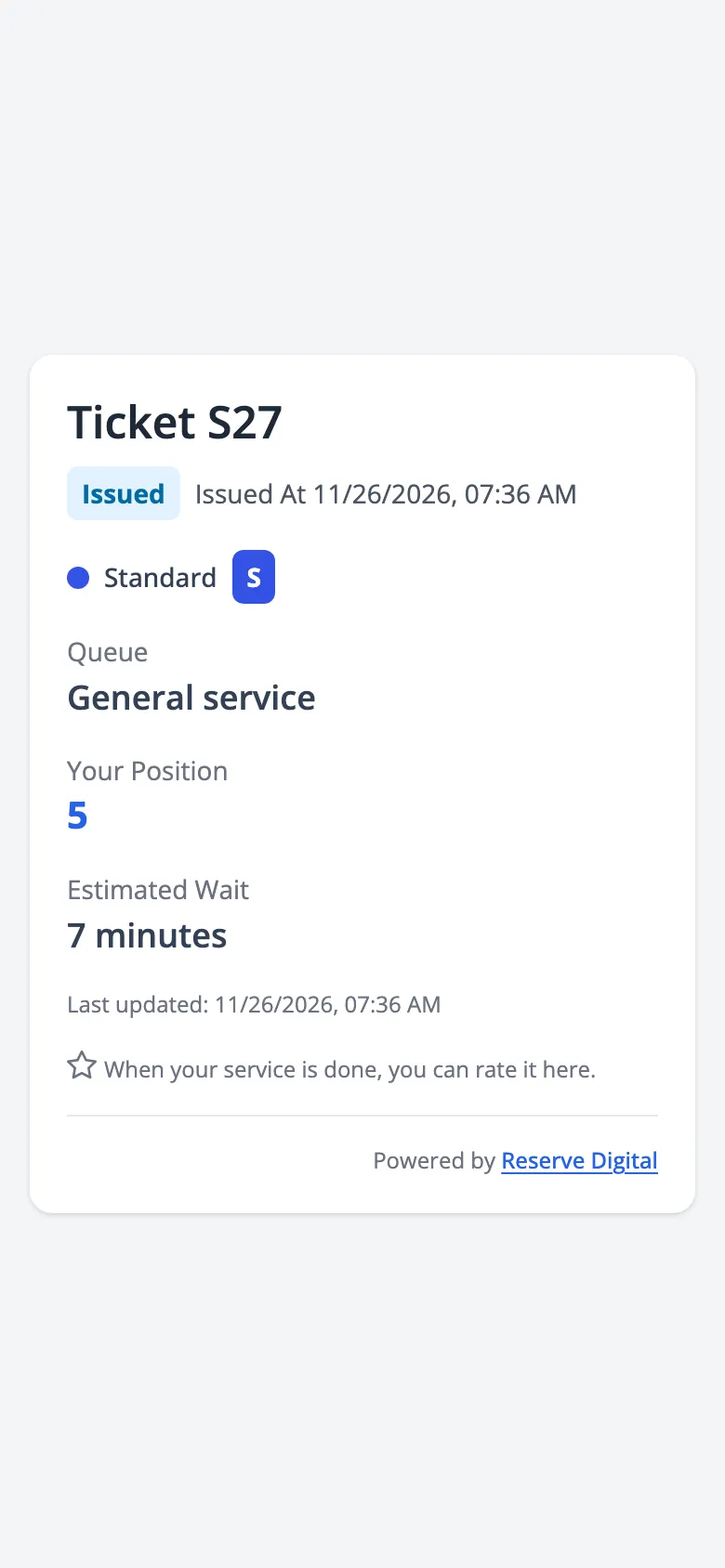
When customers scan the QR code, the ticket page opens in their browser. It shows their position in the queue, the estimated wait and the time of the last update, and it refreshes on its own as the line moves. When the ticket is called, the page says so and shows where to go, so someone who stepped out for a coffee doesn't miss their turn. It all works with no app, no sign-up and no request for a name, phone number or ID, which keeps the virtual queue open to anyone with a phone.

Optional for the customer: nobody needs to open the page to be called.

1 to 5 star service rating

When the service ends, the same ticket page asks for a rating from 1 to 5 stars. It takes a few seconds, and customers can add an optional comment about what they liked or what could be better. Each rating stays linked to the service it came from, and you follow the average, the CSAT and the details on the dashboard. It is direct feedback from someone who was just served, collected at the right moment and with no long form to fill in.

Optional: you turn the rating request on or off in the company settings.

Invitation to review on Google

After rating the service, customers can see an invitation to review your business on Google. The invitation is optional and you decide whether it shows. When it is on, it appears to everyone who rates, whatever the score. That is on purpose: Google's policies do not allow inviting only happy customers to leave a review. Showing the invitation to everyone follows that rule and makes your public reviews reflect the real service more closely.

Optional: it only shows with the rating on and your Google review link saved, and you can turn it off.

Real ticket tracking screen on a phone, with the position in line and the estimated wait
Real Reserve Digital screens, shown with demo data.

Manage

Service management: dashboard and wait reports

Your service numbers live on the dashboard, ready to check. Follow volume, waits, service per counter and satisfaction over any date range you choose.

Service dashboard

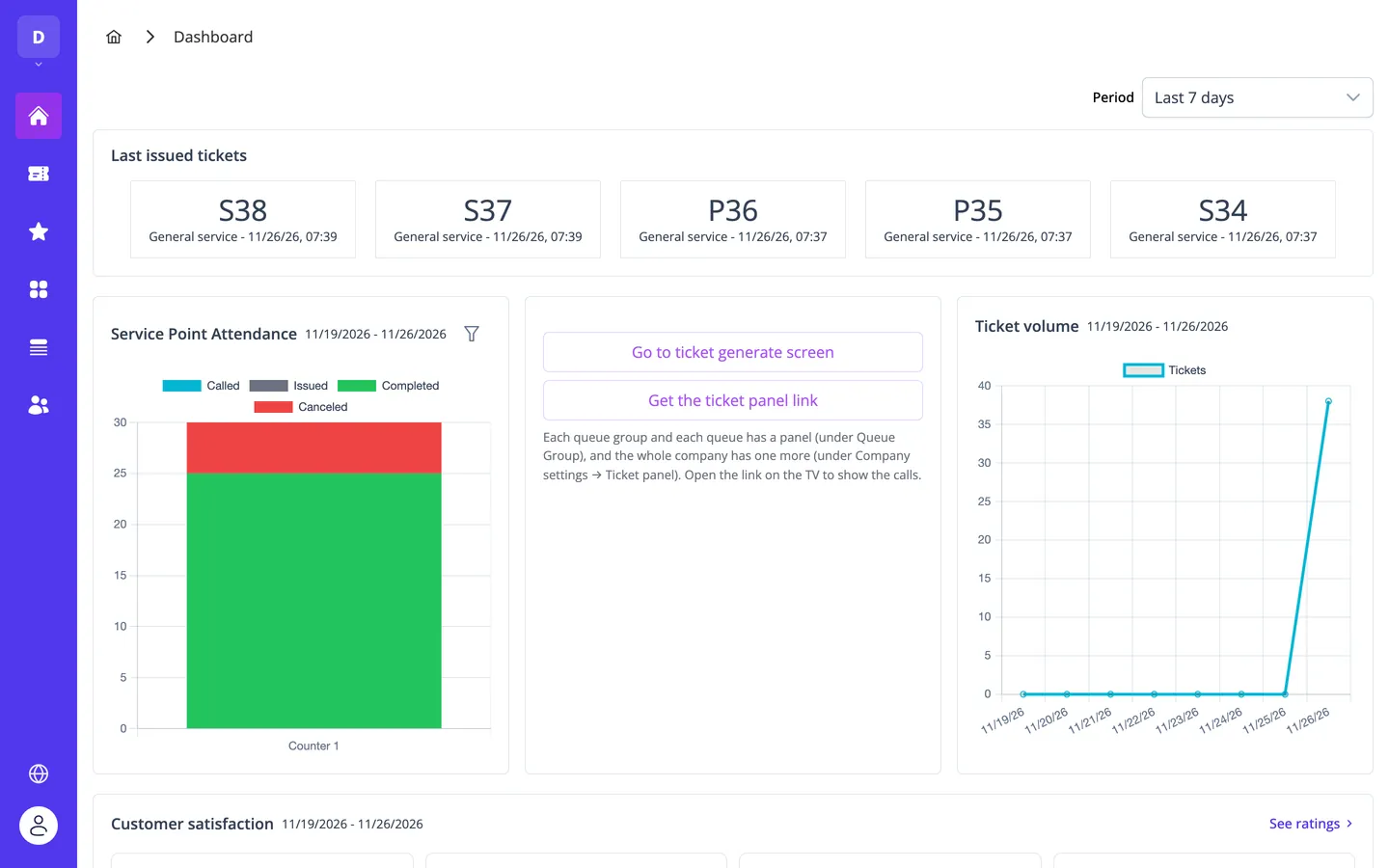
The dashboard brings the key numbers of your operation onto one screen: tickets served per counter, ticket volume, average wait per queue, the latest tickets and customer satisfaction. Pick a date range and apply filters to compare days, weeks or months. Instead of relying on what the front desk feels, you see where the line grows and which counter carries the most work. Then you plan staff schedules and queue setup based on what you measured.

Wait times and service volume

The wait report shows the average wait per queue, the number of tickets served per counter and ticket volume over time. Pick a date range and compare how each queue behaves from one period to the next. Many cities cap waiting times at bank branches and public offices, and the wait report helps you keep track of that time queue by queue. Day to day, it shows where to add staff and which services need more counters.

Customer satisfaction and CSAT

The 1 to 5 star ratings become indicators on the dashboard: the average score, the CSAT, which is the share of 4- and 5-star ratings, and the number of ratings in the period. The ratings page shows each one in detail, with the score and the customer's comment. With the date filter, you compare periods and quickly notice when something changed in your service, so you can act before dissatisfaction turns into a complaint.

Real Reserve Digital dashboard with service per counter, ticket volume and average wait
Real Reserve Digital screens, shown with demo data.

Admin

Administration: team, companies, billing and privacy

Administration brings together what keeps the operation running: who can access what, how many companies and branches you manage, how you pay and how personal data is handled.

Users, roles and permissions

Every team member has their own user, created from an e-mail invite. They sign in with a Google account or with e-mail and password, and the e-mail is confirmed with a verification code. The Owner, Admin and Standard roles set what each person can see and change, from counter work to company settings. That way people who only serve customers can't change queues by mistake, and every login belongs to a person, not a shared password.

Several companies, branches and departments

One account can run several companies, with a switcher to move between them without leaving the system. Each company has its own logo, queues, counters and team. Inside a company, queue groups organize branches or departments: each group has its own queues, priorities, numbering and panel. The company board brings every group onto a single screen, with the branch badge on each call, for whoever oversees the whole operation.

Guided first steps

When you create your account, a first-steps guide shows the essentials to start serving: create a counter, a queue group and, inside it, a queue and a priority. Each finished step is checked off, so you know exactly what is left. Your team learns by doing, without long training, and you open your first panel in a few minutes.

Plans and free trial

The free plan is free forever and asks for no card. Paid plans come with a 15-day trial: the card is requested up front and you are only charged when the trial ends. Annual billing gets 20% off. Every feature is in every plan; plans differ only in the number of users, queues and counters. Pay by card, Apple Pay or Google Pay on Stripe's secure page, and change plans or cancel at any time, with no lock-in and no setup fee.

Privacy

Customer tickets carry no personal data: they ask for no name, phone number or ID, and phone tracking works with the ticket code alone. In the rating comment, the system reminds customers not to share their ID or phone number. On the team side, every user can export a copy of their own personal data and delete their own account. On the website, analytics and advertising cookies are only set with consent, and the choice can be changed at any time.
Frequently asked questions

Which features are in the free plan?

All of them. Every plan has the same features; what changes is the number of users, queues and counters.

How does the ticket kiosk work?

The kiosk opens from a link in a tablet or computer browser. Customers pick a service and get a printed ticket on a Windows computer with the print app, or an on-screen ticket with a QR code.

Does it work on any TV?

It works on any Smart TV, monitor or computer with a browser. The panel opens from a link and can run in full screen.

How does the system handle priority service?

You create the priorities for each queue group, with a color, prefix and call order, and you can mark counters to call priority tickets first. Calls follow that setup for the whole team.

Can I see the average wait time?

Yes. The dashboard shows the average wait per queue, tickets served per counter and ticket volume for the date range you choose.

Do customers have to give personal data to get a ticket?

No. The ticket carries no name, phone number or ID, and phone tracking opens from the QR code with no sign-up.

Try every feature for free

Create your account in minutes, set up your first queue and open the panel on your TV. Free forever, no card and nothing to install.