Skip to content

A QR code virtual queue, with no app

Every ticket has a QR code. Customers scan it with the camera and follow the position, the estimated wait and the call in the phone browser, with no app, no sign-up and no personal data.

  • Position, estimated wait and the time of the last update
  • A notice on the phone screen, with the counter, when the ticket is called
  • A 1 to 5 star rating and a Google review invite, if you want them

Free forever · no card · nothing to install

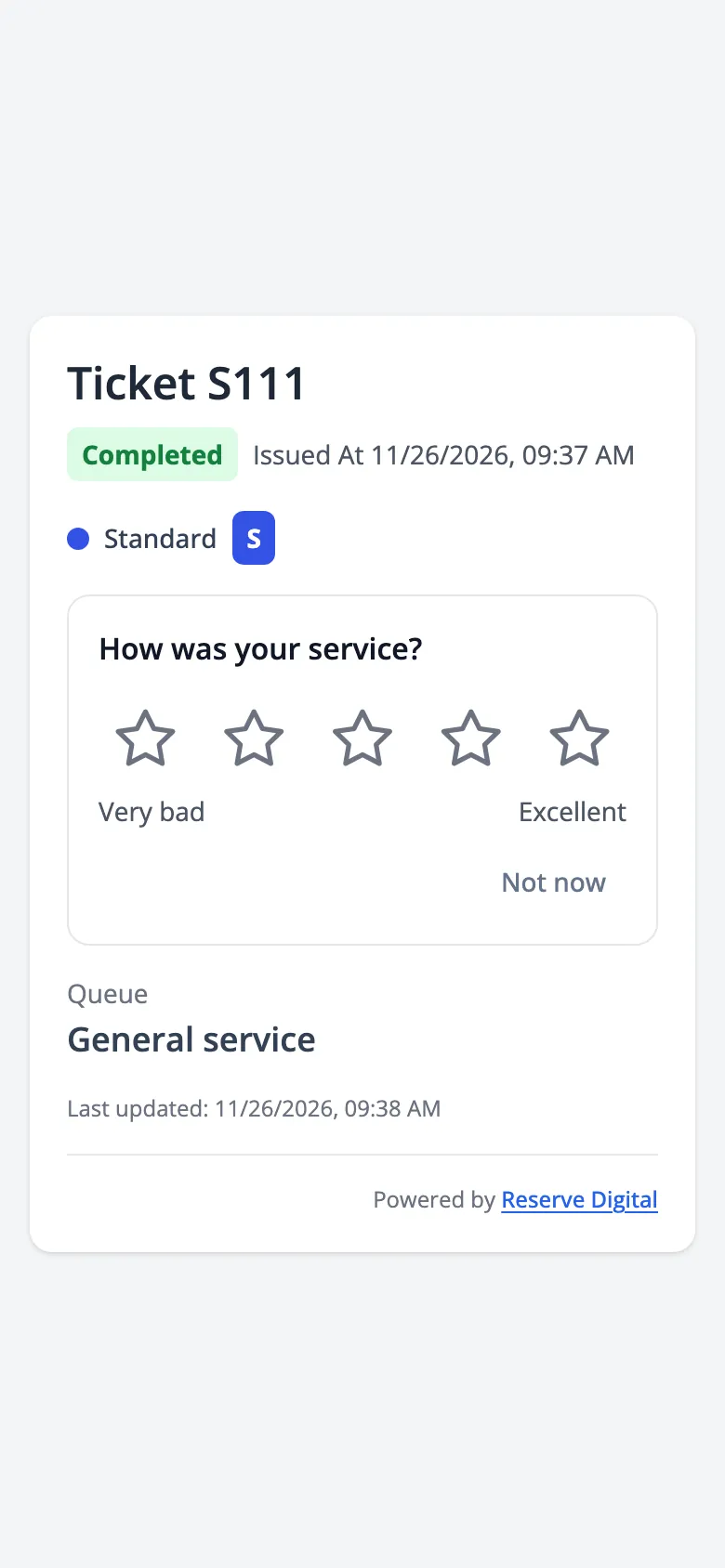
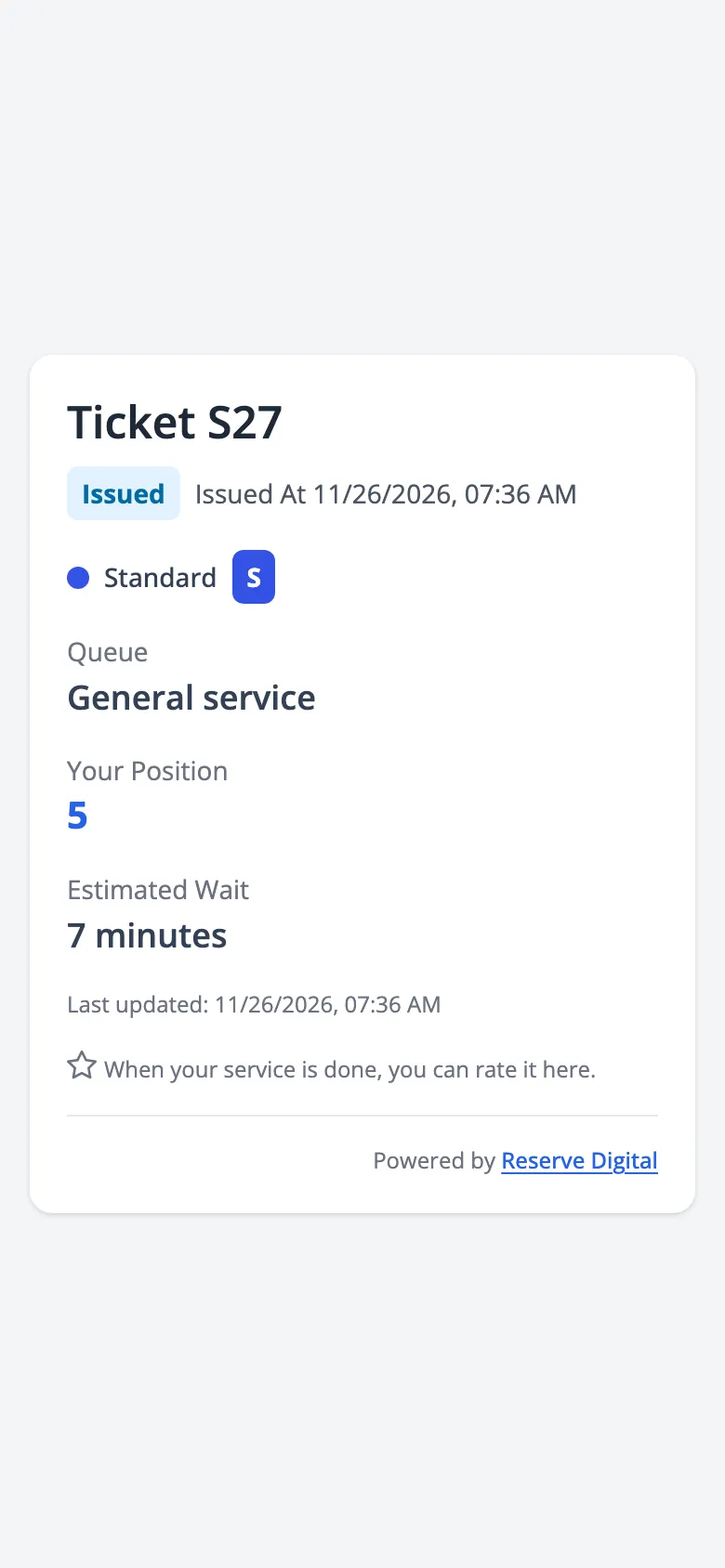
Ticket page on a phone, opened from the QR code: the queue position goes down as tickets are called
Real Reserve Digital screens, shown with demo data.

What the QR code virtual queue does

A virtual queue means staying in line without standing in it. In Reserve Digital, every ticket carries a QR code: printed on the paper from the Windows app or shown on the kiosk screen. Customers point the camera and open the ticket page in the browser, with no app, no account and no name, phone number or ID. The page shows the position, the estimated wait and the time of the last update, and refreshes by itself. When the ticket is called, it says prominently where to go and vibrates the phone on devices that allow it. So customers can wait seated, grab a coffee or run an errand nearby. After the service, the same page can ask for a 1 to 5 star rating and invite people to review your business on Google. The social networks you turn on show up there too.

  • Opens from the camera

    The ticket's QR code opens the page in the phone browser. No app to download and no sign-up.

  • Position and wait

    The queue position, “You're next” when it is almost time and an estimated wait, with the time of the last update.

  • A notice on the call

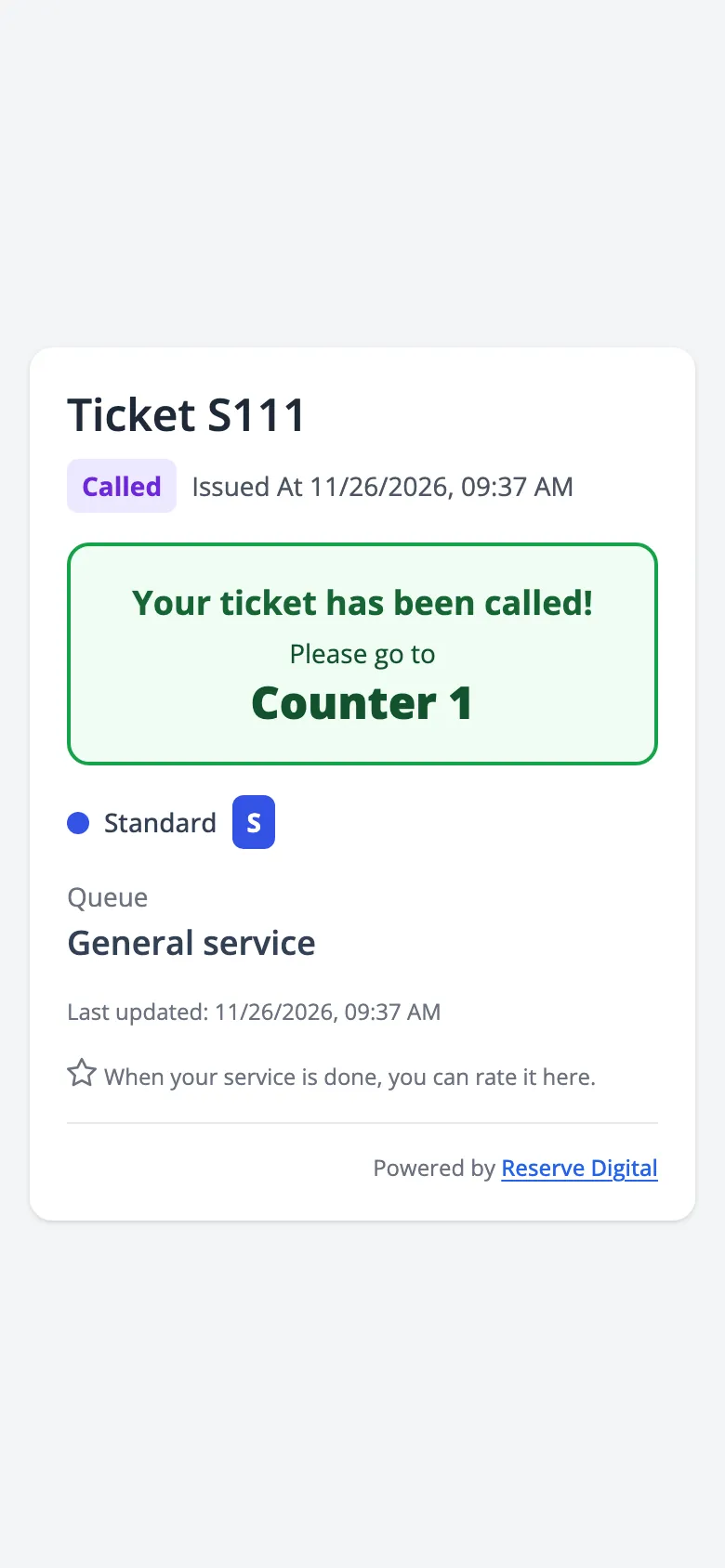
    “Your ticket has been called! Please go to Counter 1”, prominently, with vibration on phones that allow it and the tab title flagging it.

  • Service rating

    At the end, a 1 to 5 star rating and an optional comment. Ratings go to the dashboard.

  • Google review invite

    After rating, customers can be invited to leave a review of the business on Google.

  • No personal data

    The ticket is identified only by the link's code. Customers give no name, phone number or ID.

Everything you can set up

The ticket page works with no setup at all. These options decide what else it shows.

The ticket page

Automatic on every ticket, through the QR code

Where the QR code is
On the kiosk screen and on the paper printed by the Windows app, including tickets issued at the desk.
Live updates
The page gets changes right away and, if the connection drops, says so and refreshes when it comes back.
Ticket states
Waiting, called, in service, completed, redirected or canceled, each with what the customer needs to know.
Language
English or Portuguese, following the page address.
Rating

Company settings, under Service rating

Ask for a rating on the ticket page
On, customers see the 1 to 5 star request as soon as the service ends. Each ticket can be rated once, within 24 hours.
Optional comment
After the stars, a short question that follows the rating and a free-text field, with a reminder not to include personal data.
Invite to review on Google
Shown to everyone who rates, whatever the score, because Google does not allow inviting only happy customers. Needs the Google Reviews link.

Your business on the page

Company settings, under Social networks

Social networks
Instagram, WhatsApp, website and other active networks show under Follow us, on the ticket page.
Google Reviews link
Add the link of your Google Business Profile to use the review invite.

From sign-up to the first ticket on a phone

Every ticket already has the QR code. You only choose how the ticket reaches the customer.

  1. Create the free account

    No card. Create the counter, the queue group, the queue and the priorities.

  2. Choose how to issue

    A kiosk on a tablet, with the QR code on screen, or the Windows app with a printer, with the QR code on paper.

  3. Turn on what you want

    In the company settings, turn on the rating request, the Google invite and the social networks.

  4. Try it on your phone

    Issue a ticket, scan the QR code and call the ticket in the system to see the notice arrive.

Start free

What you and your customers need

For customers, just the phone. For you, a way to hand out the QR code.

  • A phone with a camera

    Any phone whose camera reads QR codes and a browser, with internet. Nothing to install.

  • Printed ticket

    A Windows computer with the Reserve Digital app and a thermal printer: the QR code comes on paper.

  • Kiosk on screen

    A tablet or computer with the kiosk open: the QR code shows on screen with the ticket.

  • Internet

    The ticket page uses the customer's mobile data or the venue's Wi-Fi, if there is one.

The virtual queue follows a ticket taken on site. Customers join the queue at the kiosk or the desk and follow it on the phone from there.

Equipment not included: the plans cover the software only, and TVs, tablets, kiosks, printers, computers, HDMI sticks, paper, installation and internet are provided by the customer.

What is optional

Everything beyond the ticket is your choice, and following on the phone is the customer's.

  • Follow on the phone

    Always available

    The QR code is always on the ticket, but nobody has to use it: whoever prefers not to follows the TV display.

  • Rating request

    Off by default

    Starts off. Turn it on in the company settings.

  • Google invite

    On by default

    Comes on and shows when ratings are on and an active Google Reviews link exists. You can turn it off.

  • Social networks

    Off by default

    Only the networks you add and mark as active show on the page.

Made for any phone

The ticket page is light, opens in the browser and works with the device's text size.

  • The call notice shows prominently, vibrates the phone where allowed and changes the tab title.
  • Clear wording and states: position, wait, called, in service and completed.
  • Anyone who cannot or does not want to use a phone is called the same way by the TV display, with sound and voice.

How each kind of business uses the virtual queue

Examples with the options available today.

  • Clinics

    Patients take a ticket at the kiosk, wait seated following the position and rate the visit at the end.

  • Service businesses

    A repair shop with printed tickets: customers step out, run an errand nearby and come back when it is almost time.

  • Stores

    Customers keep shopping while waiting for a return or a pickup, and the notice reaches their phone.

  • Notary offices

    Priority tickets, tracking on the phone and an invite to review the office on Google.

Pricing

This feature is in every plan, including the free-forever plan, with no card. Paid plans only change the number of users, queues and counters.

See plans and pricing

Questions about the QR code virtual queue

Do customers need to download an app or sign up?

No. The QR code opens the ticket page in the phone browser, with no account and no personal data.

How do customers know they were called?

The page shows prominently that the ticket was called and the counter, the tab title changes and the phone vibrates on devices that allow it. The TV display calls with sound too.

Do customers get a text message or WhatsApp?

No. The notice shows on the ticket page, open in the browser. We do not send text messages, WhatsApp messages or push notifications.

Can customers join the queue from home, on the phone?

No. The ticket is taken on site, at the kiosk or the desk, and the QR code is for following the queue from there.

How is the wait estimated?

From the queue's recent average wait, the tickets ahead and the active counters serving the queue. Without enough history, the page shows Not available yet.

Can I turn off the rating or the Google invite?

Yes. Both live in the company settings. The rating starts off; the invite comes on, but only shows with the rating on and a Google Reviews link added.

How much does the QR code virtual queue cost?

It is in every plan, including the free-forever plan, with no card. Paid plans only change the number of users, queues and counters.

Take the line out of the waiting room

Create the free account, issue the first ticket and scan the QR code with your phone.