Skip to content

A queue ticket kiosk on a tablet or computer

Customers tap the service, choose the priority and take the ticket on paper or on their phone through a QR code. The kiosk opens from a link in the browser, and a Windows app prints on the thermal printer.

  • Two taps: service and priority
  • Printed ticket with the Windows app, or a QR code on screen
  • No dedicated kiosk to buy: use a tablet or computer you already have

Free forever · no card · nothing to install

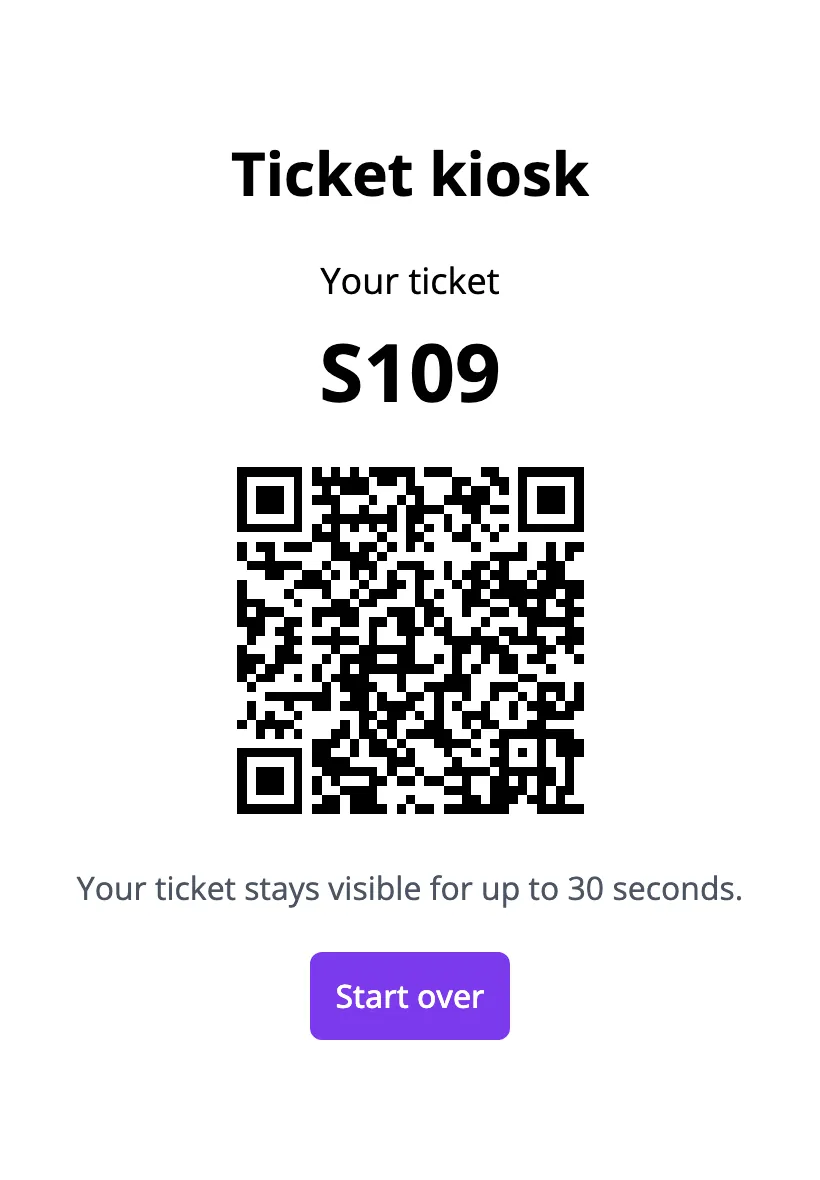
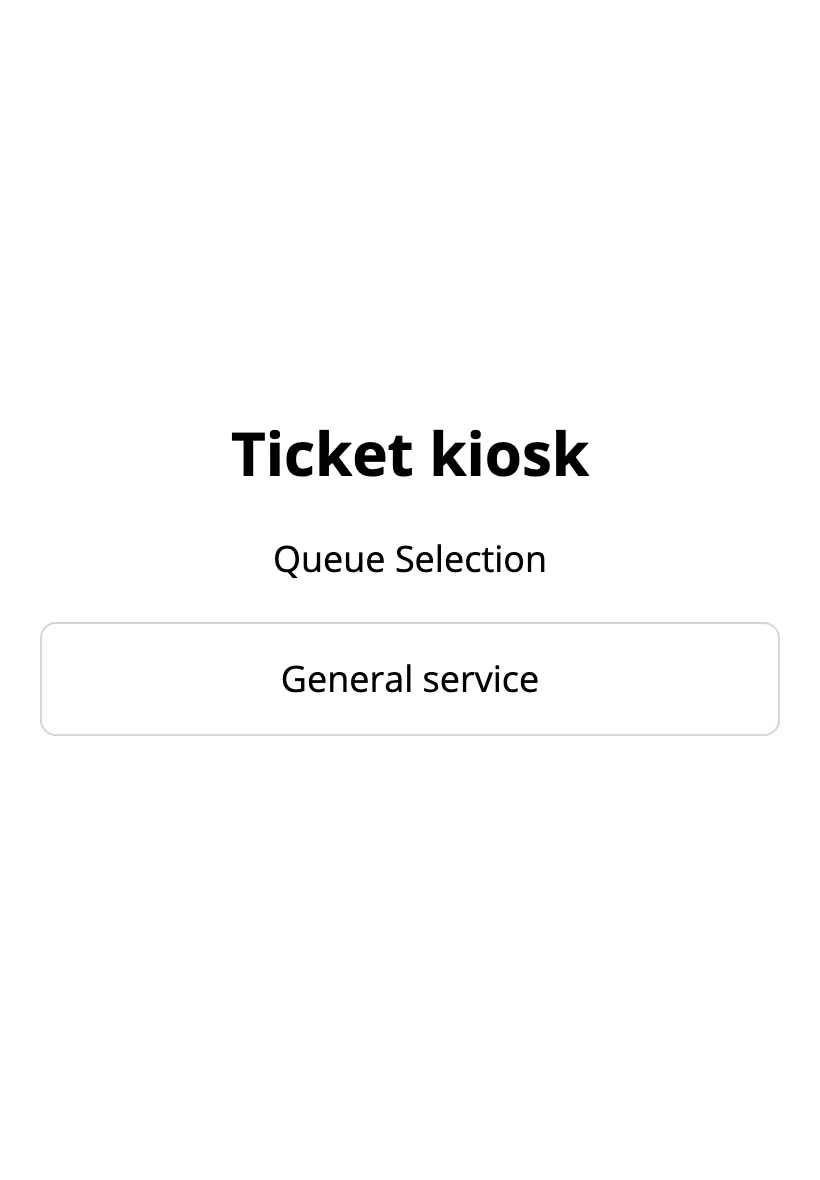
Self-service kiosk on a tablet: the customer picks the service, the priority and gets the ticket with a QR code
Real Reserve Digital screens, shown with demo data.

What the ticket kiosk does

The kiosk is the front door of the queue. It shows customers the services you allow, asks for the priority and issues the ticket in the right queue, with no staff member standing at the door handing out paper. In Reserve Digital, the kiosk is a page that opens from a queue group link in the browser of a tablet or a computer with a screen. The ticket shows in large type with a QR code, which the customer scans to follow the queue on the phone. On a Windows computer with the Reserve Digital app, the same ticket prints on the default printer, with no print dialog. After each ticket, the kiosk goes back to the start by itself. If something fails along the way, it says what to do, and the link can be replaced or turned off at any time.

  • Tablet or computer

    Any device with a browser and a screen becomes a kiosk. There is no dedicated hardware to buy.

  • Service and priority

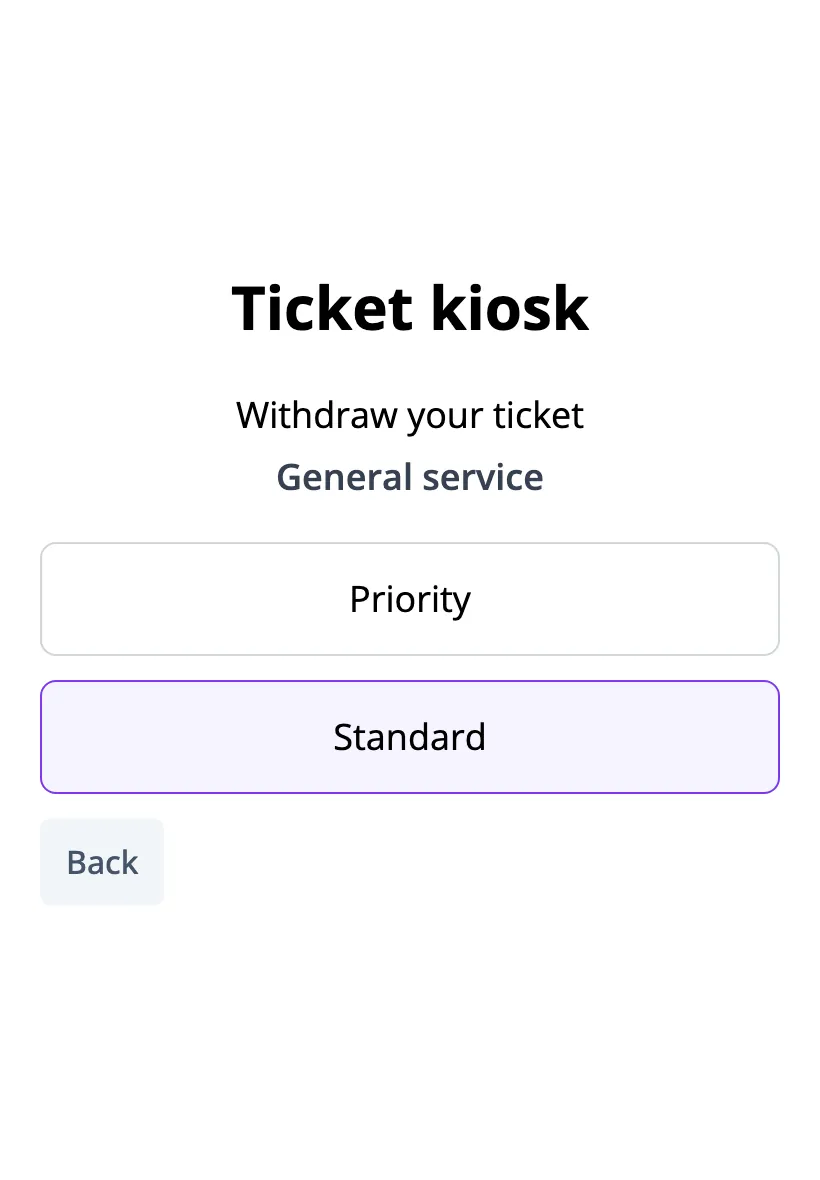
    Customers pick the service among the queues you marked for the kiosk, then the priority, such as Standard or Priority.

  • Ticket with a QR code

    The ticket stays on screen for up to 30 seconds with a QR code to follow the queue on the phone.

  • Automatic printing

    With the Windows app, the ticket prints with the QR code, the queue, the date and the time, straight to the default printer.

  • Back to the start by itself

    After each ticket, the kiosk returns to the first screen by itself. If something fails, it shows the notice and a button to start over.

  • A link you control

    The kiosk needs no sign-in. That is why you can create a new link, which invalidates the old one, or turn the link off whenever you want.

Everything you can set up

The kiosk uses the queues and priorities of the queue group. You choose what shows up, how tickets are numbered and whether they print.

Services shown

Each queue's settings, in the queue group

Display on totem
On, customers can pick the queue on the kiosk. Off, the queue disappears from the kiosk and its tickets are issued by staff only.
Priorities
The group's priorities become the buttons of the second screen, with the names you give them.
Active or inactive queue
An inactive queue stops taking tickets without deleting anything.
Kiosk link

Totem button in the queue group

Turn on and open
Turn the link on and open the kiosk on the device, by copying the address or scanning the link's QR code.
Generate a new link
The old link stops taking tickets. Use it when the device moves or the link ends up where it should not.
Disable the link
Turns the group's kiosk off until you turn it on again.
One kiosk per group
Each queue group has its own link, so the reception and the lab can have different kiosks.

The ticket

Queue group and priorities

Format
Priority letter and number, or queue letter, priority letter and number, with prefixes of 1 to 5 letters and a live preview while you set it up.
Reset the numbering
Restart the group's ticket count when you need to, for example at the start of the day. The group's pending tickets are canceled and the display is cleared.
Priority color
The color you choose follows the ticket on the TV display and on the staff screen.

Printing

Reserve Digital app for Windows, downloaded from the kiosk screen

Silent printing
The ticket prints on the Windows default printer as soon as it is issued, with no print dialog.
What goes on paper
The ticket, the tracking QR code, the queue, the date and the time.
Tickets issued at the desk
In the same app, a ticket that staff create in the system prints too.
Automatic updates
The app updates itself, without interrupting a print in progress.

From sign-up to the first customer at the kiosk

Set up the kiosk with the tablet or computer already at the front desk.

  1. Create queues and priorities

    In the free account, create the queue group, the queues and the priorities. Turn on Display on totem for the queues customers can pick.

  2. Turn on the kiosk link

    In the queue group, open Totem and turn the link on. Open it on the device by copying the address or scanning the QR code.

  3. Add printing, if you like

    On a Windows computer, download the Reserve Digital app from the same screen, set the thermal printer as default and open the kiosk in the app.

  4. Test it and put it in sight

    Issue a test ticket, check the QR code on a phone and place the kiosk at the entrance.

Start free

What you need

Pick the device by how the ticket reaches the customer: on screen and on the phone only, or on paper too.

  • Tablet

    An Android tablet or iPad with an up-to-date browser. The ticket goes out through the QR code on screen. To lock the tablet to the kiosk, use Android screen pinning or iPad Guided Access.

  • Computer with a screen

    A computer, ideally with a touch screen. To print, it must run 64-bit Windows with the Reserve Digital app.

  • Thermal printer

    A thermal receipt printer installed in Windows, with the maker's driver and set as the default printer.

  • Internet

    An internet connection on the device. Without it the kiosk cannot issue tickets and says so on screen.

We have not tested specific printer models: the app prints on the Windows default printer. Before buying, make sure the model has a Windows driver and print a test ticket.

Equipment not included: the plans cover the software only, and TVs, tablets, kiosks, printers, computers, HDMI sticks, paper, installation and internet are provided by the customer.

What is optional

The kiosk works with no paper and no app. You decide the rest.

  • Printed ticket

    Off by default

    Only with the Windows app and a printer. Without them, the ticket goes to the phone through the QR code.

  • Queue on the kiosk

    On by default

    Every new queue shows on the kiosk; turn off Display on totem for the ones only staff handle.

  • Follow on the phone

    Always available

    Every ticket has the QR code, on screen and on paper. Anyone who prefers not to use a phone follows the TV display.

Accessible self-service

The kiosk is made to be used standing up, by anyone, with no explanation.

  • Large buttons, at least 44 pixels tall, and text that grows with the screen.
  • At each step, focus moves to the screen title, so screen reader users can follow along.
  • A back button at each step and an automatic return to the start.

How each kind of business uses the kiosk

Setup examples with the options available today.

  • Stores

    A tablet at the entrance with returns, pickups and store credit; the ticket goes to the phone and the customer keeps shopping.

  • Public sector

    A computer with a thermal printer in the lobby, one kiosk per department and a priority for priority service.

  • Clinics

    A reception kiosk with Appointments, Tests and Results pickup, and the lab queue kept off the kiosk.

  • Schools and colleges

    A kiosk at the registrar's office during enrollment, with the numbering reset each morning before opening.

Pricing

This feature is in every plan, including the free-forever plan, with no card. Paid plans only change the number of users, queues and counters.

See plans and pricing

Questions about the ticket kiosk

Do I need to buy a kiosk?

No. A tablet or a computer with a screen works as a kiosk. For paper tickets, use a Windows computer with the Reserve Digital app and a thermal printer.

Which printers work?

The app prints on the Windows default printer. A thermal receipt printer with a Windows driver works like any other installed printer. We do not keep a list of tested models yet, so print a test ticket before buying.

Can the kiosk print from a tablet?

No. Printing is done by the Windows app. On a tablet, the ticket shows on screen with the QR code for the phone.

Does the Windows app have a kiosk mode?

No. It opens the system in a regular window. On a tablet, use Android screen pinning or iPad Guided Access to keep the kiosk open.

Can I choose which services show on the kiosk?

Yes. On each queue, turn Display on totem on or off. Queues turned off stay available for staff to issue tickets.

What if the kiosk link is shared by mistake?

Generate a new link on the kiosk screen: the old one stops taking tickets right away. You can also disable the link.

Do customers have to give their name or an ID?

No. The kiosk only asks for the service and the priority, and the ticket holds no personal data.

Set up your kiosk today

Create the free account, turn on the kiosk link and open it on the front-desk tablet or computer.