Create an account and sign in
Here you create your account, confirm your e-mail, sign in and choose the company you will work in. It also covers what to do when you forget your password or get an invite.
Who can do it: Anyone: people who will create a company and people who were invited to one.
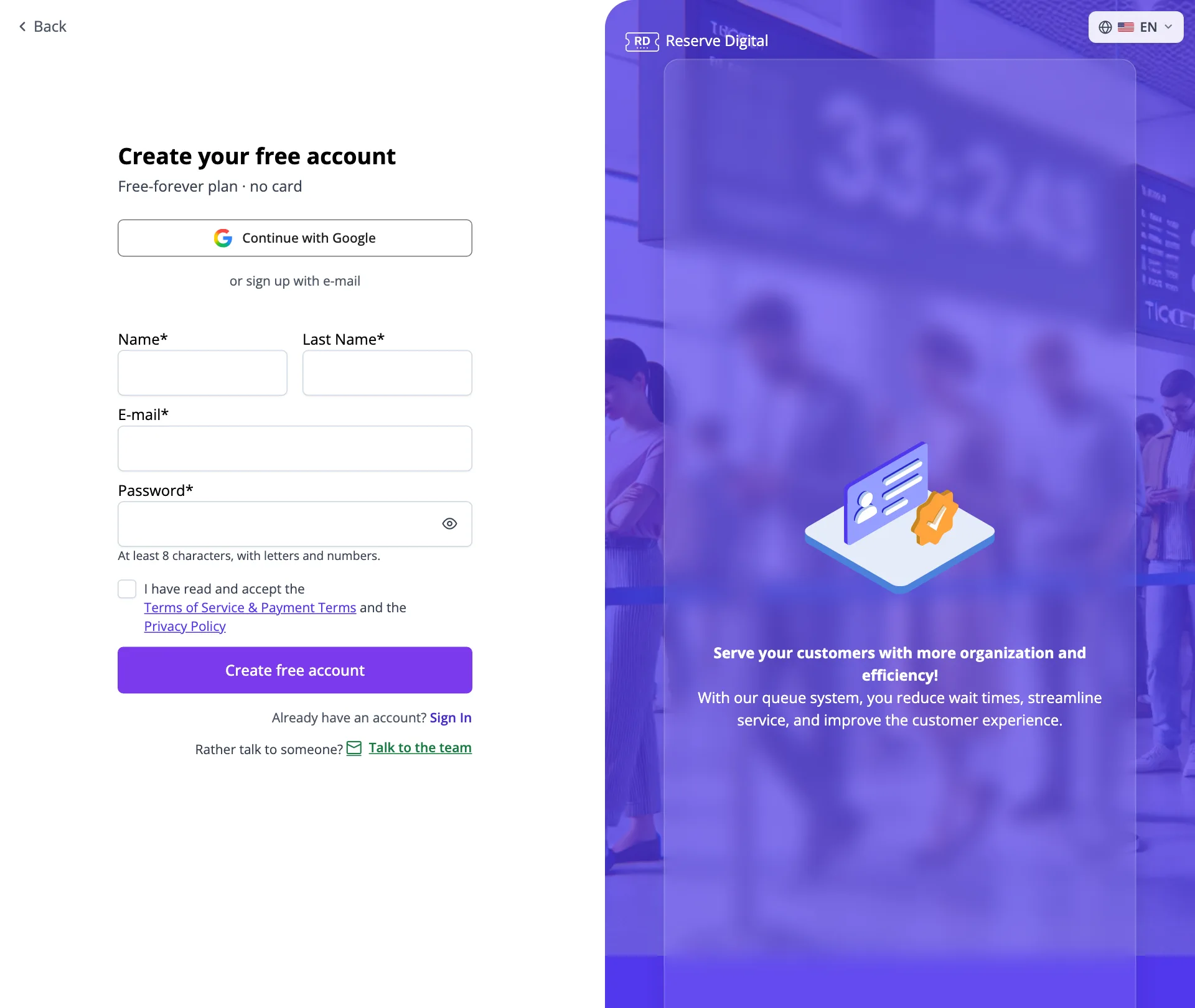
Create the account
Signing up is free and asks for no card. If you came from the pricing page with a plan chosen, the top of the form shows that plan; you confirm it after creating your company.
- Open the sign-up page or click Sign Up on the sign-in screen.
- Fill in Name and Last Name 1.
- Type your E-mail 2.
- Create a Password 3 of at least 8 characters, with letters and numbers.
- Tick the box for the Terms of Service & Payment Terms and the Privacy Policy 4.
- Click Create free account 5.
- First and last name: required, 2 to 255 characters.
- Password: the eye icon (Show password) shows what you typed.
- The terms must be accepted; otherwise you see You must accept the Terms of Use and the Privacy Policy to create an account.
- If the Continue with Google button is shown at the top, you can sign up with your Google account instead of filling in the form. See Sign in with Google.
Confirm your e-mail
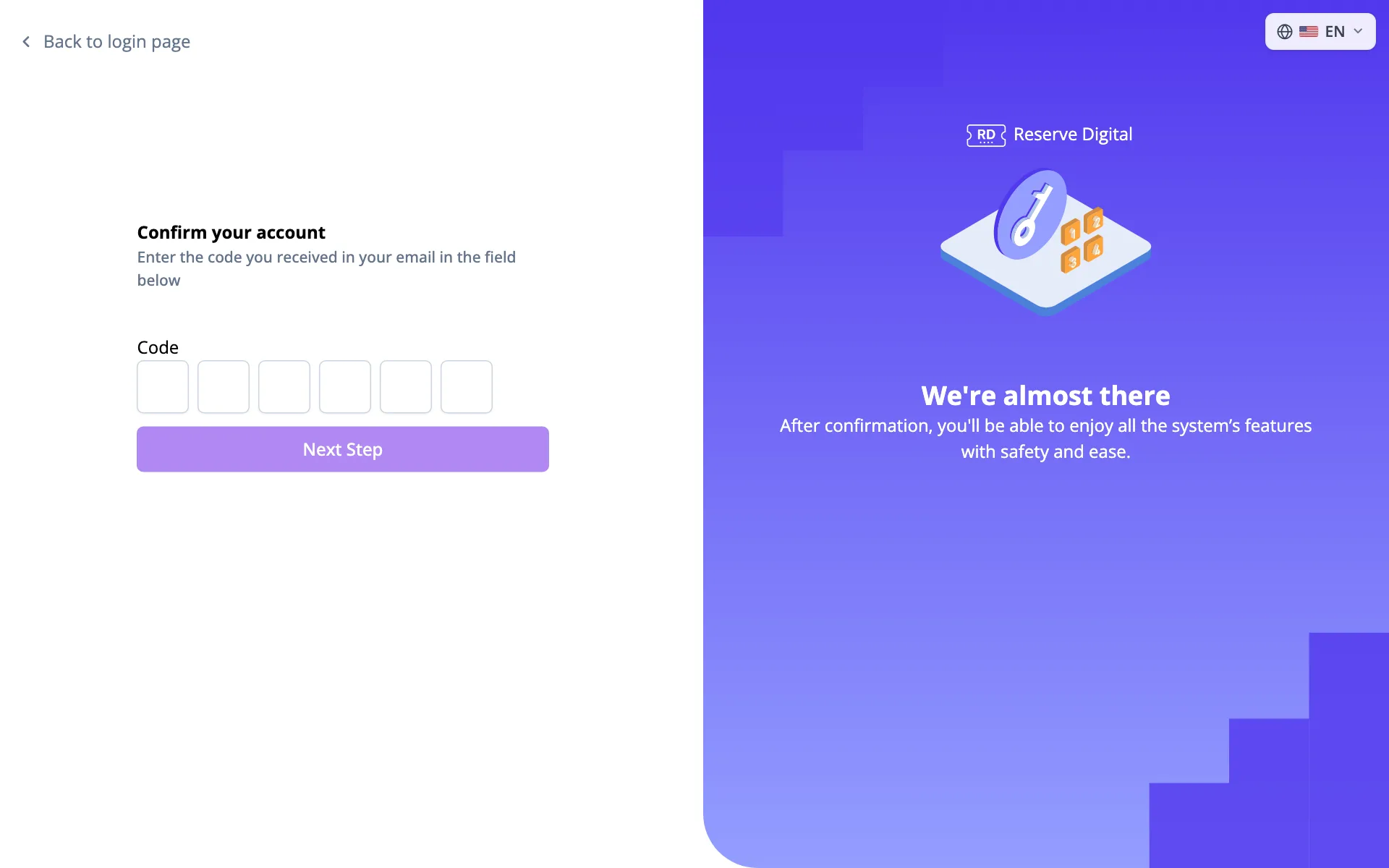
After signing up you see Account created, check your email to validate your account! and move to the Confirm your account screen. The code sent to your e-mail has 6 characters.
The screen shows We sent the code to followed by your e-mail. If the code does not arrive, click Resend code. After a resend, the button waits a moment (Resend code in …s) before it works again.
- Open the Reserve Digital e-mail in your inbox (check the spam folder too).
- Type the code in the Verification code field 1.
- Click Next Step 2.
- Sign in with your e-mail and password on the sign-in screen, which comes with your e-mail filled in.
Tip: If you open the code in another browser or device, the screen asks you to create your password and confirm your first name, last name, phone (optional) and the terms. These details replace the ones from the sign-up. Click Confirm account to finish.
First access: get a new code
Use First Access when the confirmation code didn't arrive, expired or you lost the e-mail.
- On the sign-in screen, click First Access.
- Type the account's e-mail.
- Click Next Step.
- Type the new code on the Confirm your account screen and click Next Step.
- After sending you see A new code has been sent to your email.
- If you ask for too many codes in a short time, you see You've requested too many codes. Wait a moment and try again.
Sign in
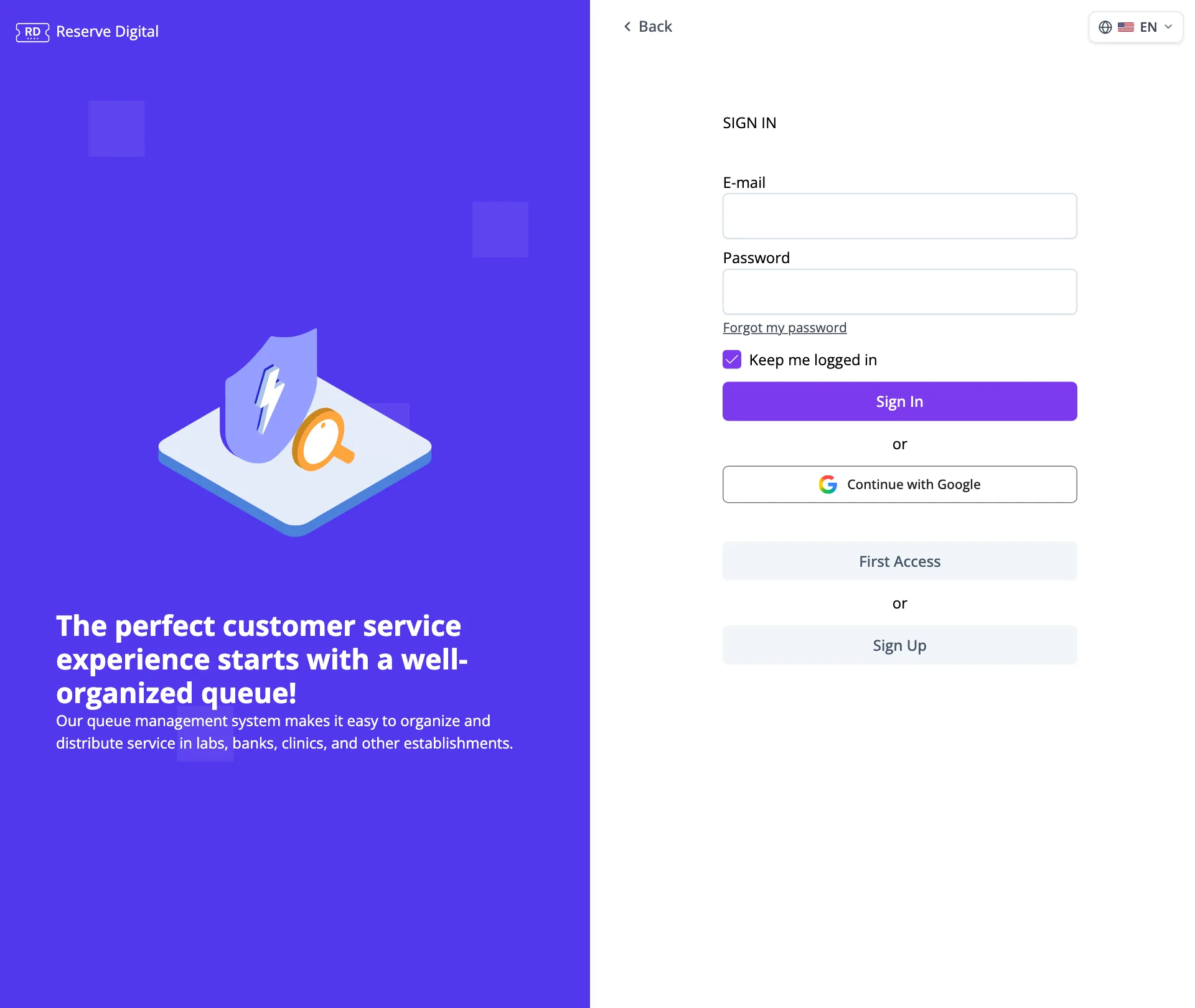
- Open the sign-in screen.
- Type your E-mail 1 and Password 2.
- Keep Keep me logged in 3 ticked if this device is yours alone.
- Click Sign In 4.
- Keep me logged in is ticked by default. With it, the session lasts longer in this browser; unticked, the session ends sooner and you sign in again. On a shared computer, untick it.
- Forgot my password 5 opens password recovery. See Forgot my password.
- First Access 6 sends a new confirmation code. See First access.
- To sign out, open your avatar menu at the bottom of the side menu (on a phone, the menu in the top corner) and click Logout.
Sign in with Google
The Continue with Google button is shown on the sign-in and sign-up screens when Google sign-in is available. It is not shown in the Windows app, which shows Google sign-in is available in the browser. Here, sign in with your e-mail and password. instead.
- Click Continue with Google.
- Choose your Google account in the Google window.
- Follow the screen you see back in Reserve Digital (see the cases below).
- Google account already connected: you are signed in right away.
- New e-mail: you see Create your account. Check your first and last name, add a phone if you want, accept the terms and click Create account.
- E-mail that already has an account with a password: you see This e-mail already has an account. Type the password and click Connect with my password, or choose to get a code by e-mail. Confirming with the code signs out the other sessions and disables the current password; you then set a new one with Forgot my password.
- When the e-mail must be confirmed, you see Confirm your e-mail: click Send code, type the code you got and click Next Step.
- You can also connect Google to an existing account from your profile. See the profile and security guide.
Forgot my password
Recovery has three steps: ask for the code, confirm the code and create the new password. An account created only with Google also sets a password this way.
- On the sign-in screen, click Forgot my password.
- Type the account's e-mail and click Send recovery email.
- Type the 6-character code you got and click Next Step.
- Type the New Password and repeat it in the confirmation field.
- Click Change password.
- Sign in with the new password.
- Can't find the code? Click I couldn't find the code in my email. to get another one.
- The new password needs at least 8 characters, with at least one letter and one number.
- At the end you see Password changed! Proceed to login.
Choose a company
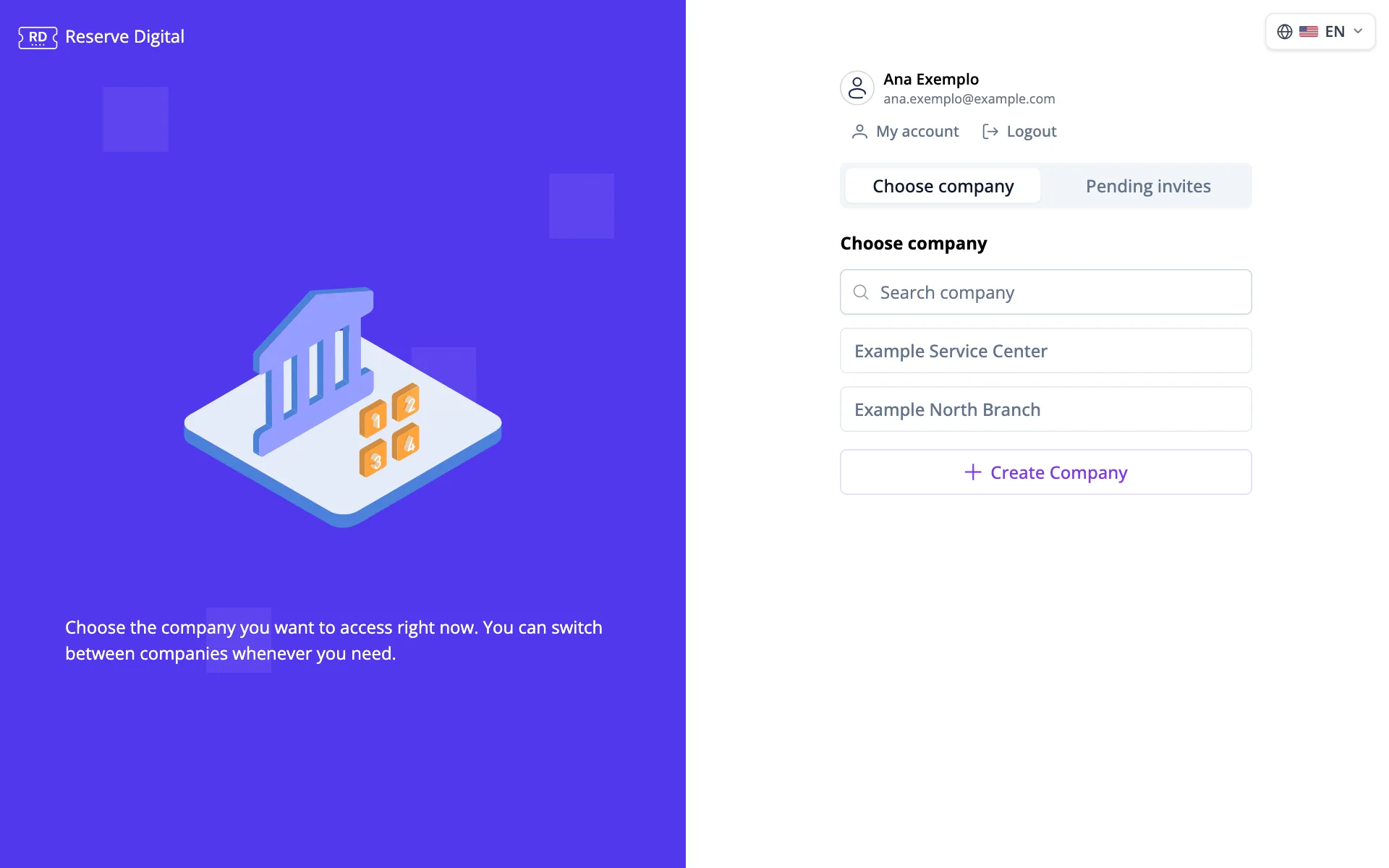
After signing in you see the company picker, with your name and e-mail at the top, the My account button (your profile) and Logout. It has two tabs: Choose company and Pending invites.
- Use Search company to filter the list if you have many companies.
- Click the company name 1 to enter it.
- Click Create Company 2 to create a new one. See the company guide.
- Open the Pending invites tab 3 to accept an invite.
Tip: Once inside, switch companies with the company switcher at the top of the side menu, under Change Company.
Accept an invite
When an Owner or Admin invites you, you get an e-mail with a 6-character code. The invite can only be accepted by the account with the same e-mail that was invited, and it is valid for a short time: in the list, the clock color changes as the deadline nears, and Expire at shows the date.
- Sign up or sign in with the e-mail that got the invite.
- On the company picker, open Pending invites.
- Click the green confirm button on the company's row.
- In the Confirm the code received by e-mail to accept the invitation window, type the code from the invite e-mail.
- Click Confirm.
- Go back to Choose company and click the company.
Heads-up: If the invite expired, ask the person who invited you to resend it from the users screen.
Troubleshooting
| Message | What to do |
|---|---|
| Your session expired for inactivity or security. Sign in again to continue. | Sign in again. This happens after a while without use or when the session is ended for security. |
| Your password was changed and every session was ended. Sign in with the new password. | Shown after a password change. Sign in with the new password. |
| Your e-mail was changed and every session was ended. Sign in with the new e-mail. | Shown after an e-mail change. Sign in with the new address. |
| This account is locked for your protection. Contact support to recover it: | Reach us through the support page. |
| Too many attempts. Wait a moment before trying again. | Wait a few minutes and try again, or use Forgot my password. |
| Your account has no password yet. Set one with "Forgot password" first. | The account was created with Google. Sign in with Google or set a password with Forgot my password. |
| Incorrect or expired code. Check it, or request a new one. | Check the code in the latest e-mail or ask for another one. |
| Too many incorrect codes, so this request was cancelled. Start over. | Start the process again to get a new code. |
| The Google sign-in took too long or was opened in another browser. Try again. | Click Continue with Google again, in the same browser. |
| This Google account is already connected to another Reserve Digital account. | Sign in with that other account, or use your e-mail and password. |
Related guides
- Getting startedThe whole first setup in the right order, from your account to the TV panel.
- CompanyCreate a company, switch between companies, keep its settings up to date and delete it.
- Profile and securityPersonal details, e-mail, password, Google sign-in, data export and account deletion.
- Users and rolesRoles, invites, each person's service points and removing access.