Queues: the services customers choose
A queue is the service a customer picks when taking a ticket, such as Cashier, Pickup or Appointment. In this guide you create queues inside a group, choose which ones show on the kiosk, link each queue to the service points that serve it and, if you want, turn on a panel just for it.
Who can do it: Owner and Admin.
What a queue is
Each queue belongs to a queue group and uses that group's numbering. Customers pick the queue on the kiosk, and staff pick it when they generate a ticket in the app.
A queue is served only by the service points linked to it. With no service point linked, nobody can call that queue's tickets.
Open a group's queues
- Open Queue Group in the side menu.
- Click the arrow at the start of the group's row (on a phone, the Manage priorities and queues arrow button).
- Click the Queues tab and review the table of the group's queues.
The Queues tab sits below the group's row, on the Queue Group screen itself, and shows how many queues the group has, such as Queues (3). The table shows Name, Description, QTY Service Points (how many service points serve the queue) and each queue's Options. An inactive queue has a light red background. See Priorities and queues inside the group.
Tip: On a phone, each queue becomes a card. Tap ⋮ to see Edit, Service Points, Ticket panel and Delete.
The Queues tab
- Add Queue opens the form for a new queue.
- Filter opens the list filters. See Filter queues.
- The QTY Service Points column shows how many service points serve each queue.
- Service Points opens the list to link service points to the queue.
- Ticket panel opens the queue's own panel. See Queue panel.
- The Edit and Delete buttons sit in the same Options column.
Add a queue
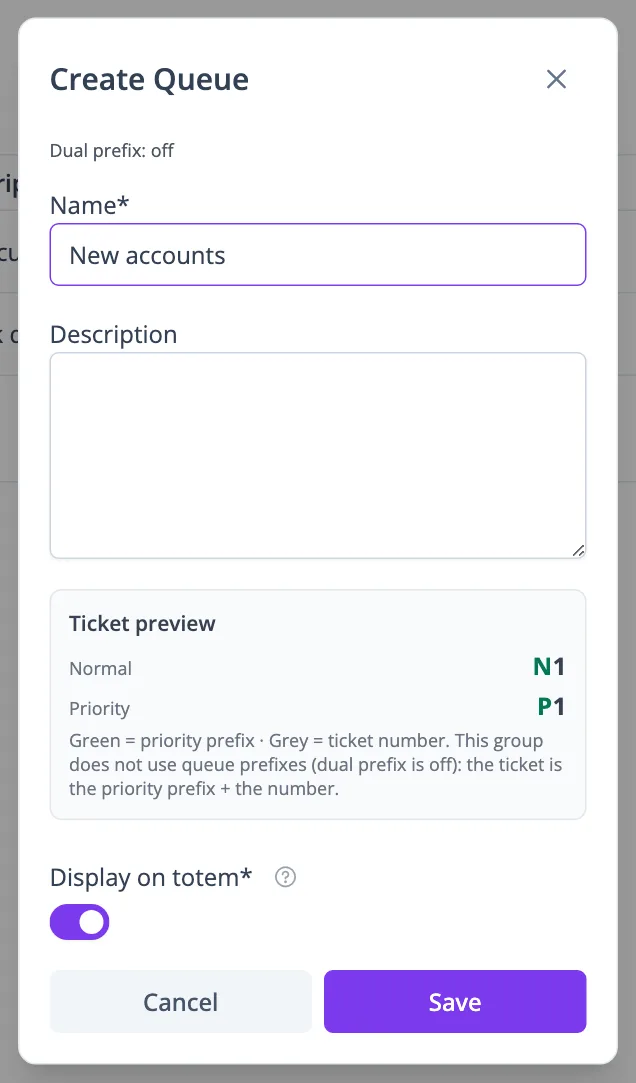
- Click Add Queue.
- Type the queue's Name 1, for example
Cashier. - Write a Description 2 if you want.
- Leave Display on totem 3 on if customers can pick this queue on the kiosk.
- Click Save 4.
- In the window that opens next, link the service points that serve the queue.
If the group uses Dual prefix, the form also shows the required Queue prefix field. The form's first line repeats the group's rule, for example Queue prefix: at most 2 letters and Dual prefix: on.
Below the fields, the Ticket preview shows what this queue's tickets look like with up to three of the group's priorities.
Every queue field
| Field | What it does | Rules |
|---|---|---|
| Name | The service name, shown on the kiosk, the staff screens and the panel. | Required, up to 255 characters. |
| Description | Free text for the team. | Optional, up to 255 characters. |
| Queue prefix | The queue's letters at the start of the ticket. Shown only when the group uses Dual prefix. | Required in that case. Letters A to Z only, at most the length set on the group. Must differ from the prefix of every other queue of the group. |
| Display on totem | When on, customers can pick the queue on the kiosk. When off, the queue is hidden from the kiosk and its tickets can only be issued by staff. | On by default. |
| Active | Shown only when editing. An inactive queue does not show on kiosks. | On by default. |
Link service points to the queue
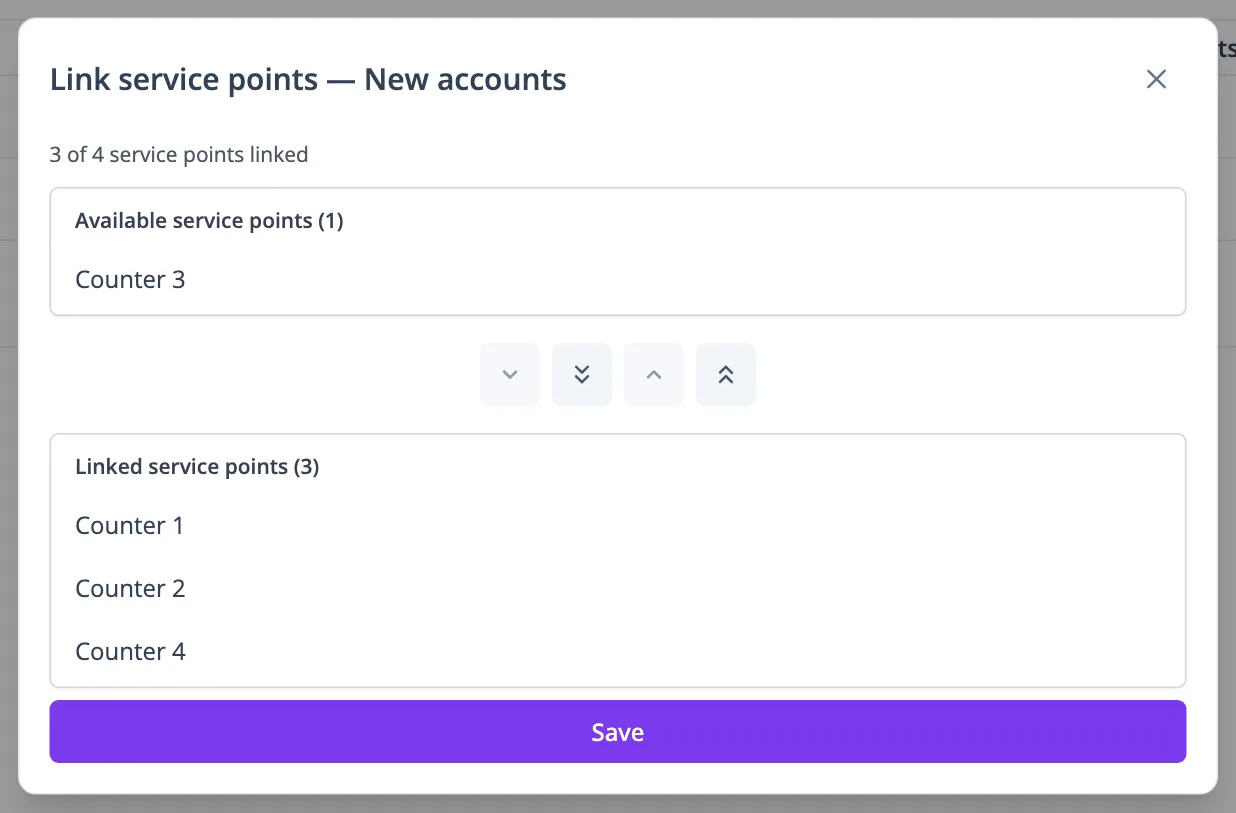
- Click Service Points on the queue's row, or save a new queue.
- Select one or more service points in the Available service points column 1.
- Click the arrow 2 to move them to the other column.
- Check the Linked service points column 3.
- Click Save 4.
The window is called Link service points followed by the queue's name. The line above the columns shows how many are linked out of the total, for example 2 of 3 service points linked. To unlink, select the service point in the right column and use the arrow back.
Tip: You can also link from the service point's side, under Service Points › ⋮ › Link Queues. See Service points.
Filter queues
- Name and Description: type part of the text.
- Served at the counter: shows only the queues linked to the chosen service point.
- Active: All, Yes or No.
- Click Filter to apply or Clear filter to go back to the full list.
- Filters are kept in the page address, so you can bookmark or share the filtered link.
Queue panel
Besides the group's panel, each queue can have a panel that shows only its own calls on a TV. It starts turned off.
- Click Ticket panel on the queue's row.
- Read the warning: anyone with the link can see the queue's called tickets without signing in.
- Click Turn on the queue panel.
- Use Copy link or Open panel, or point a camera at the QR code.
- Clear panel: removes the tickets shown on the queue's panel. The group's panel is not cleared, no ticket is canceled and numbering continues.
- Generate a new link: disables the current link. Every TV with the old link has to be opened again with the new one.
- Turn off the panel: the link stops working and the TV shows "Panel not found". When you turn it back on, a new link is generated.
- The dialog says that the queue panel shows the same display as the group's panel: the group's own settings or, without them, the company default. The Change what this panel shows link opens those settings. See TV panel appearance.
Tip: To put the panel on a TV, see TV panel.
Deactivate or delete a queue
- Deactivate: click Edit, turn Active off and save. The queue disappears from kiosks and stays in the list with a light red background. To bring it back, turn Active on again.
- Delete: click Delete and confirm. The queue's open tickets are canceled with a system note in their history. If any of them cannot be canceled, nothing is deleted.
- The history of completed tickets stays under Tickets.
Heads-up: Reactivating a queue counts against the plan's queue limit, just like a new queue.
The plan's queue limit
The number of active queues depends on the plan. The plan cards under Billing show each plan's Queues limit, and so does the pricing page.
Past the limit, the system answers: "Queue limit exceeded for your current plan. Upgrade your plan to create more queues." See Plans and subscription.
If the plan changes to one with fewer queues, the oldest queues stay active and the ones over the limit become inactive. When you move back to a bigger plan, they are reactivated.
Troubleshooting
- "Queue prefix must be at most 2 uppercase letters (A-Z)": use letters only, no digits or accents, within the group's length. The number depends on the group.
- "Duplicate prefix for queue": another queue of the same group already uses that prefix. Pick another one.
- The queue does not show on the kiosk: check that Display on totem and Active are on. The kiosk also needs at least one priority in the group.
- Nobody can call the queue's tickets: the queue has no linked service point. See Link service points to the queue.
- "The service is busy applying plan limits right now. Please try again in a moment.": wait a few seconds and save again.
Related guides
- Queue groupsNumbering, prefixes, spoken announcement, clearing the panel and resetting a group's count.
- PrioritiesCall order, prefix and color of each priority in a group.
- Service pointsCreate service points, set priority service and link queues and people.
- TV panelPut the group, queue or company panel on a TV, with adjustable sound, voice and theme.
- Ticket kioskTurn on the kiosk link so customers take tickets on their own, and print with the Windows app.
- Plans and subscriptionFree or paid plan, free trial, upgrades, downgrades, cancelling and currency.