
Service ratings
With rating turned on, customers give 1 to 5 stars on the ticket page after they are served. This guide shows how to turn it on, what the customer sees, how to read the Ratings page and who sees each piece of information.
Who can do it: Turn it on and see the Ratings page: Owner and Admin. Default users see the score on tickets, without the comment.
How it works
- The rating happens on the ticket's tracking page, the same page the customer opens from the QR code. See Virtual queue and ticket tracking.
- The request appears only after the ticket is Completed. Canceled tickets are not rated.
- Each ticket can be rated once, within 24 hours of completion.
- The customer is not asked for any personal data.
Turn on rating
- Click the company's initial in the side menu and choose Company settings.
- Go to the Service rating card.
- Turn on Ask for a rating on the ticket page 1.
- If you also want to invite customers to review you on Google, leave Invite to review on Google afterwards on 2.
- Check the message "Service rating updated".
- Rating starts off for every new company. The Google invite starts on and only applies while rating is on.
- The change is saved right away, with no save button.
- On the Dashboard and on the Ratings page, the Turn on ratings button takes you straight to this card.
- For Default users, the options are disabled with the hint "Only owners and administrators can change this."
- Ratings are optional and apply to the whole company; to stop them, turn the same switch off. See Turn features on or off.
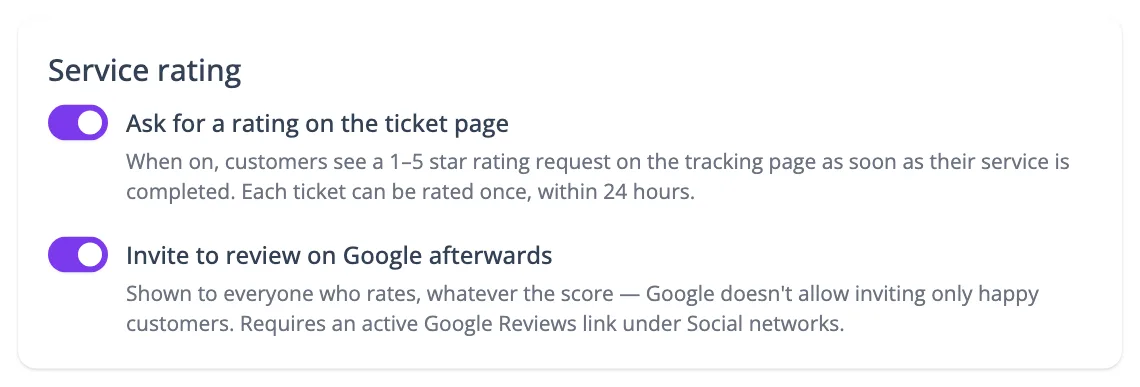
Invite to review on Google
- The invite appears after the customer sends the score, for everyone, whatever the score. Google does not allow inviting only happy customers.
- It needs a Google Reviews link under Social networks, with Show on the public ticket page on. See Company.
- Without that link, the card says: "Add your Google Reviews link under Social networks to use this option."
What the customer sees
- While waiting: "When your service is done, you can rate it here."
- After the ticket is completed: the question How was your service? with 5 stars (Very bad, Bad, Okay, Good, Excellent) and the Not now button.
- After the score: with 4 or 5 stars, "Great! What did you like most?"; with 1 to 3, "Sorry about that. What could be better?".
- Reasons to pick from: Wait time, Staff friendliness, Getting what I needed, Queue & call organization and Environment & comfort.
- An optional comment of up to 500 characters, with the hint "Please don't include personal data such as ID or phone numbers."
- Reasons and comment can be sent once, within 30 minutes of the score. The customer can also tap Skip.
- At the end, "Thanks for your feedback!" and, if on, the Review on Google button.
The Ratings page
- In the side menu, click Ratings.
- In Period 1, choose Last 7 days, Last 30 days (default), Last 90 days, Last 180 days, Last 365 days or Custom period.
- Read the indicators 2.
- Use the filters 3 to focus on what matters.
- Click a row 4 to see the rating's details.
- The period uses the date the service was completed.
- Average score: the average of the scores in the period.
- CSAT: "Share of 4- and 5-star ratings."
- Ratings · Response rate: the number of ratings and "Ratings ÷ completed services in the period."
- Filters: Queue, Desk, Score (buttons 1 to 5), Reason and With comment only. Clear filter removes them all. On a phone, they are under the Filter button.
- The list loads 20 ratings at a time. Click Load more to see the next ones.
Tip: The page has no export. To see the trend over time, use the Dashboard card described below.
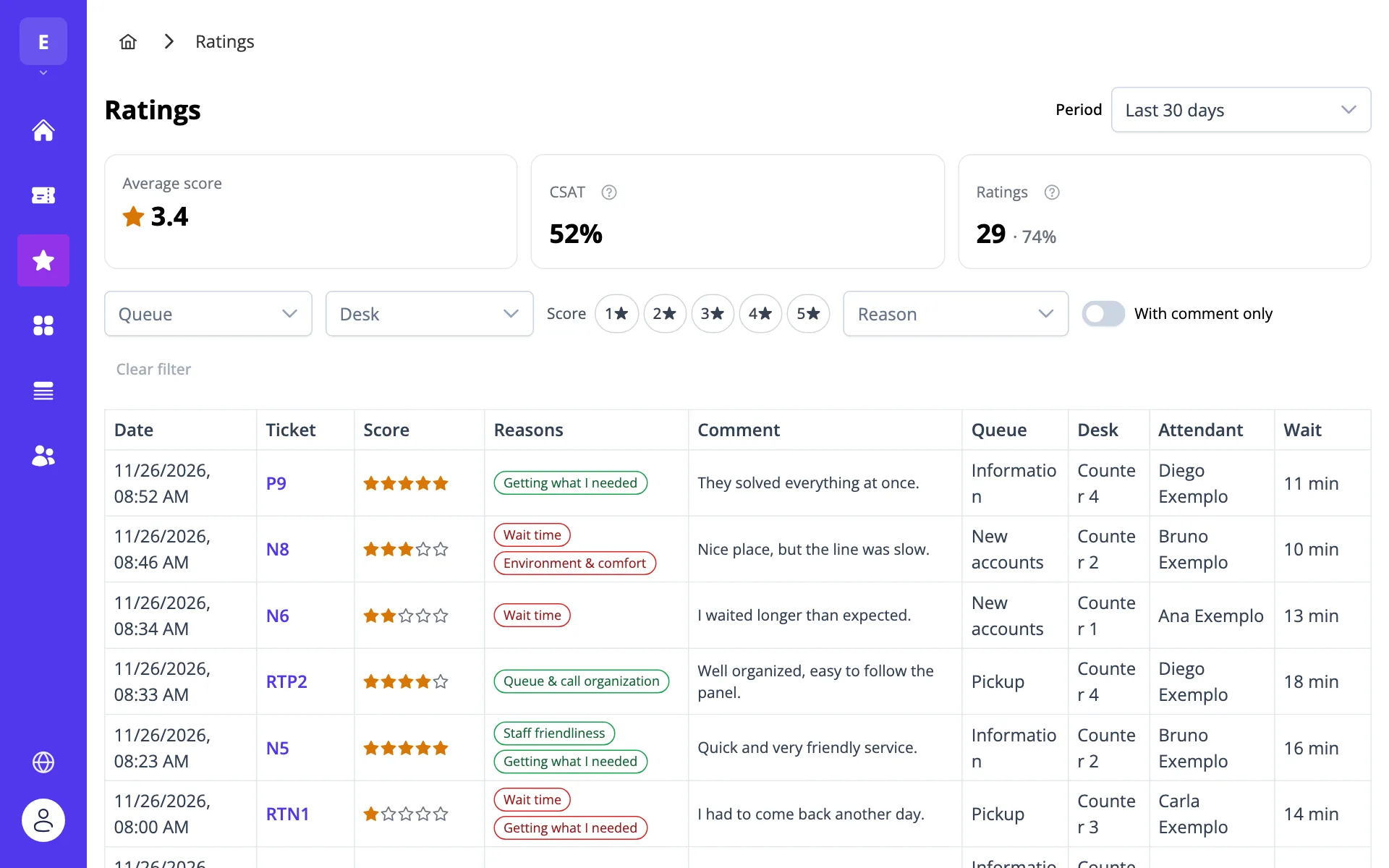
The table columns
| Column | What it shows |
|---|---|
| Date | When the customer rated. |
| Ticket | The ticket number. Click it to open the details. |
| Score | The stars given. |
| Reasons | The reasons the customer picked. |
| Comment | The customer's text. Long comments can be expanded. |
| Queue and Desk | Where the ticket was served. "(removed)" means a queue or service point deleted afterwards. |
| Attendant | Who completed the service. |
| Wait | Minutes between the ticket's issue and its first call. |
A rating's details
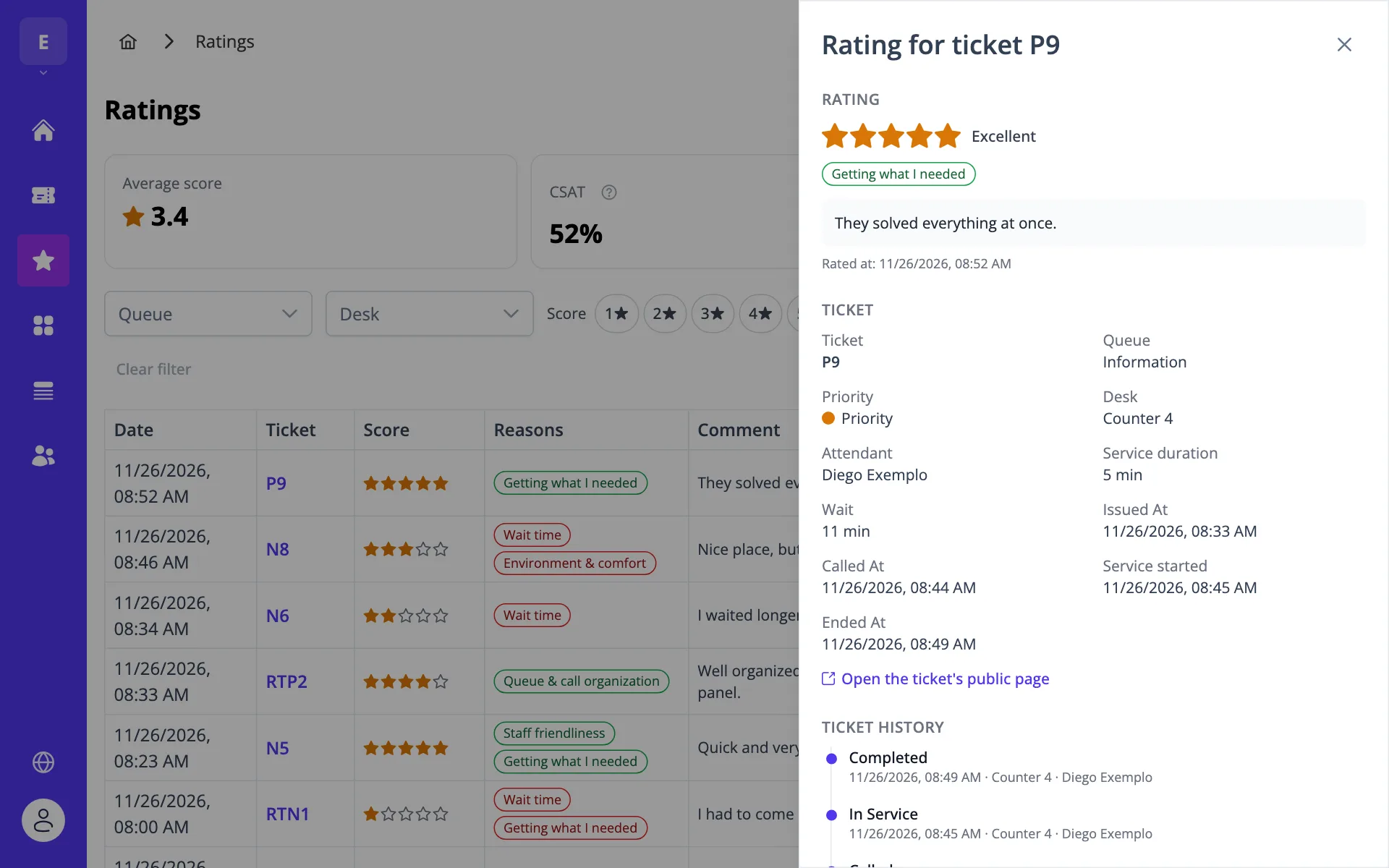
- The Rating block 1 shows the stars, the reasons (green for scores 4 and 5, red for scores 1 to 3), the comment and Rated at.
- The Ticket block shows the ticket, queue, priority, desk, attendant, Service duration, Wait, Issued At, Called At, Service started and Ended At.
- Open the ticket's public page 2 opens the page the customer saw.
- Ticket history lists every action with its date, desk, queue and the name of who performed it.
- The same details open from the score badge (for example ★4) on the Tickets screen.
The Customer satisfaction card on the Dashboard
The Dashboard has the Customer satisfaction card, with Average score, CSAT, Ratings and Response rate, plus Score distribution and Average score per day for the period chosen on the Dashboard. See ratings opens the Ratings page with the same period. With rating off, the card says "Turn on service rating to see customer satisfaction." See Dashboard.
Who sees what
| Owner and Admin | Default | |
|---|---|---|
| Turn rating on and off | Yes | No |
| Ratings page | Yes | No |
| Score badge and reasons on the Tickets screen | Yes | Yes |
| Customer's comment | Yes | No |
Troubleshooting
| Message or situation | What to do |
|---|---|
| "Service rating is turned off." | Click Turn on ratings and turn on Ask for a rating on the ticket page. |
| "No ratings in this period." | Widen the period or clear the filters. |
| "Couldn't save the service rating settings." | The change was undone. Try again in a moment. |
| The customer did not get the request | The ticket must be Completed and the request lasts 24 hours. Canceled tickets are not rated. |
| The Google button does not appear for the customer | Add the Google Reviews link under Social networks with Show on the public ticket page on, and leave Invite to review on Google afterwards on. |
Related guides
- Virtual queueCustomers follow their ticket from the QR code: place in line, estimated wait, call and rating.
- CompanyCreate a company, switch between companies, keep its settings up to date and delete it.
- DashboardLatest tickets, attendance per service point, volume, satisfaction and queue waiting time.
- Ticket historyFilter tickets by number, service point, queue, priority, status and dates, and see each history.
- Turn features on or offRatings, Google invite, kiosk, panels, voice and queues: what is optional and where to change it.