Priorities: call order, prefix and color
A priority decides who is called first and gives the ticket its letters and color, such as Regular, Preferred or Senior. In this guide you create priorities, set their order and see how the call next button uses that order.
Who can do it: Owner and Admin.
What a priority is
Each priority belongs to a queue group and applies to every queue of that group. When taking a ticket, a person picks the queue and then the priority.
A priority sets three things: its place in the call order, the prefix that opens the ticket (for example PN in PN18) and the color shown on the staff screens and the TV panel.
Tip: A group needs at least one priority to issue tickets. If you do not offer preferential service, create just one, such as Regular.
How the order is used when calling
When someone clicks Call next ticket, the system picks the ticket from the queues linked to the service point. What changes is the service point's Has Priority option:
| Service point | Call order |
|---|---|
| Has Priority: Yes | First the priority with the lowest number in the Order column (1 is called before 2), and within the same priority whoever arrived first. |
| Has Priority: No | Arrival order only, ignoring the priority. |
- Lower numbers mean higher priority: 1 is the highest and is called first.
- See how to set up the service point in Service points and how to call in Call and serve tickets.
The priority list and its order
- Open Queue Group in the side menu.
- Click the arrow at the start of the group's row and open the Priorities tab.
- Drag a row by its drag handle to the position you want.
- Check the new position in the Order column.
- Add Priority opens the form for a new priority.
- The QTY count shows how many priorities the group has out of the maximum allowed, such as
QTY: 3/10. It turns orange above 70% of the maximum and red when the limit is reached. - The new order is saved as soon as you drop the row.
- A new priority goes to the end of the list.
- The Priorities tab sits below the group's row, on the Queue Group screen itself. See Priorities and queues inside the group.
Tip: There is no dragging on a phone. Tap ⋮ on the priority's card and use Move up or Move down. The same menu has Edit and Delete.
Add a priority
- Click Add Priority.
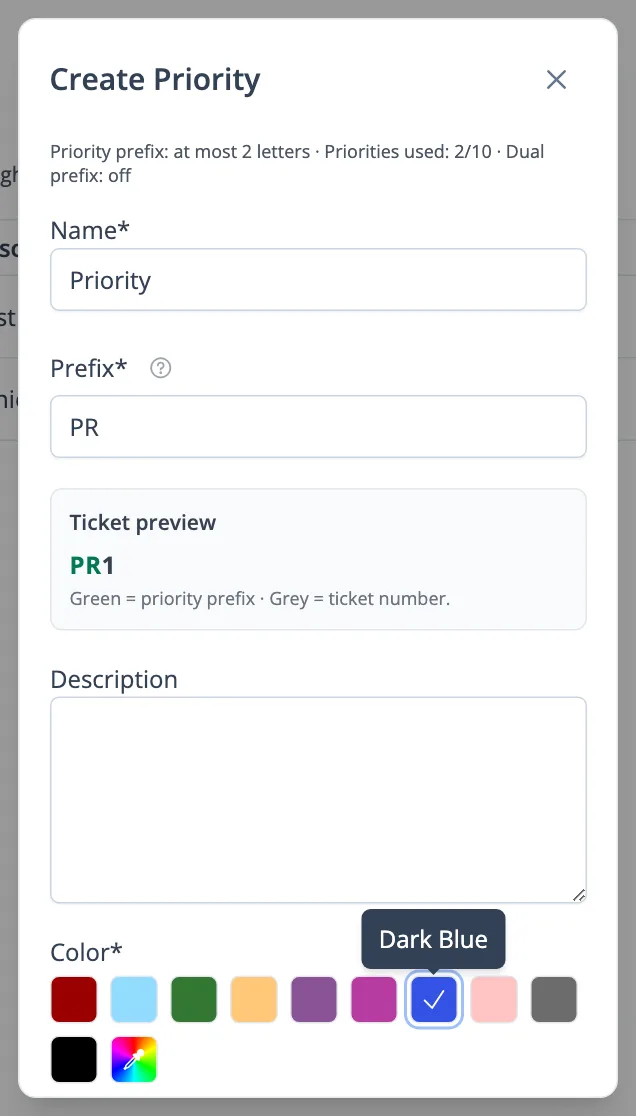
- Type the Name 1, for example
Preferred. - Type the Prefix 2, for example
PF. - Pick one of the preset colors 3 or the custom color 4.
- Check the color Preview and its contrast 5.
- Click Save.
The form's first line shows the group's rules, such as Priority prefix: at most 2 letters, Priorities used: 3/10 and whether dual prefix is on. The Ticket preview below the prefix shows the ticket the priority produces; with dual prefix, it shows one ticket for each of up to three of the group's queues.
Every priority field
| Field | What it does | Rules |
|---|---|---|
| Name | The name shown on the kiosk, the staff screens and the panel. | Required, up to 100 characters. |
| Prefix | The letters that open this priority's tickets in every queue of the group. | Required. Letters A to Z only, at most the length set on the group. Must differ from the prefix of every other priority of the group. |
| Description | Free text for the team. | Optional, up to 255 characters. |
| Color | The color of the priority's badge on the screens and the panel. | Required, in the #RRGGBB format. |
Choose the color
- Preset colors: Red, Blue, Green, Orange, Purple, Pink, Dark Blue, Salmon, Gray and Black.
- Custom color: the last square, with the eyedropper icon, opens a color picker and the Hex code field, where you paste a code such as
#3452E5. - Preview: shows the priority's badge as it appears on the screens, with the text color already applied, and the contrast value, such as Contrast 7.1:1.
- Low contrast warning: appears when the badge text becomes hard to read on the color. When a similar, more legible color exists, the warning offers a Use button with its code.
- Repeated color: if another priority of the group already uses the same color, a warning names it.
- The warnings do not block saving. They help you choose a color that is easy to read from across a room, on a wall display.
The group's priority limit
Each group accepts up to the Maximum priorities set on the queue group. Once reached, the Add Priority button is locked and shows Maximum of 10 priorities reached (with your group's number). This limit belongs to the group and does not depend on the plan.
To add more, raise Maximum priorities under Queue Group › Edit.
Edit or delete a priority
- Edit opens the same form. Changing the name, prefix, description or color does not change its place in the order.
- Delete asks for confirmation. Open tickets with that priority are canceled with a system note in their history. If any of them cannot be canceled, nothing is deleted.
- The history of completed tickets stays under Tickets.
Troubleshooting
- "Priority prefix must be at most 2 uppercase letters (A-Z)": use letters only, no digits or accents, within the group's length. The number depends on the group.
- "Color is required": pick a preset or a custom color.
- "Use a hex color such as #RRGGBB": the custom color code needs
#and six characters from 0 to 9 and A to F. - "Duplicate prefix for priority": another priority of the group already uses that prefix.
- "Priority limit exceeded": the group reached its Maximum priorities.
- The priority does not change the call order: check that the service point's Has Priority is set to Yes.
Related guides
- Queue groupsNumbering, prefixes, spoken announcement, clearing the panel and resetting a group's count.
- QueuesAdd your services, choose what shows on the kiosk and link the service points that serve them.
- Service pointsCreate service points, set priority service and link queues and people.
- Call and serveCall the next ticket, start and end service, redirect, cancel and generate tickets at the desk.
- TV panelPut the group, queue or company panel on a TV, with adjustable sound, voice and theme.