Virtual queue: follow the ticket on the phone
Every ticket has a tracking page. Customers open it from the QR code and can wait away from the desk: it shows the place in line and the estimated wait, and tells them when the ticket is called and at which service point.
Who can do it: Customers, with no sign-in and nothing to install. The Owner and Admin set what the page shows (social networks and rating).
What the virtual queue is
In Reserve Digital, the virtual queue is the ticket's tracking page. Customers take the ticket at the kiosk, at the in-person issuing screen or from an attendant, and follow the wait on their phone.
There is no page for customers to take a ticket from home. Tickets are always issued on site: at the kiosk, at the in-person screen or by an attendant. See Ticket kiosk.
- The ticket page has no switch; what you can turn off on it is the rating and each social link shown. See Turn features on or off.
How the customer opens the page
- Scan with the phone camera the QR code shown on the kiosk screen or on the printed ticket.
- Open the link the camera shows. The page opens in the browser, with no app and no sign-in.
- Keep the page open while waiting. It updates by itself.
- Printed tickets with a QR code come only from the Reserve Digital app for Windows. Tickets generated by an attendant in a browser are not printed.
- Staff can also open the page of a rated ticket from Ratings, through the Open the ticket's public page link.
- The ticket link has no expiry date.
What the page shows while waiting
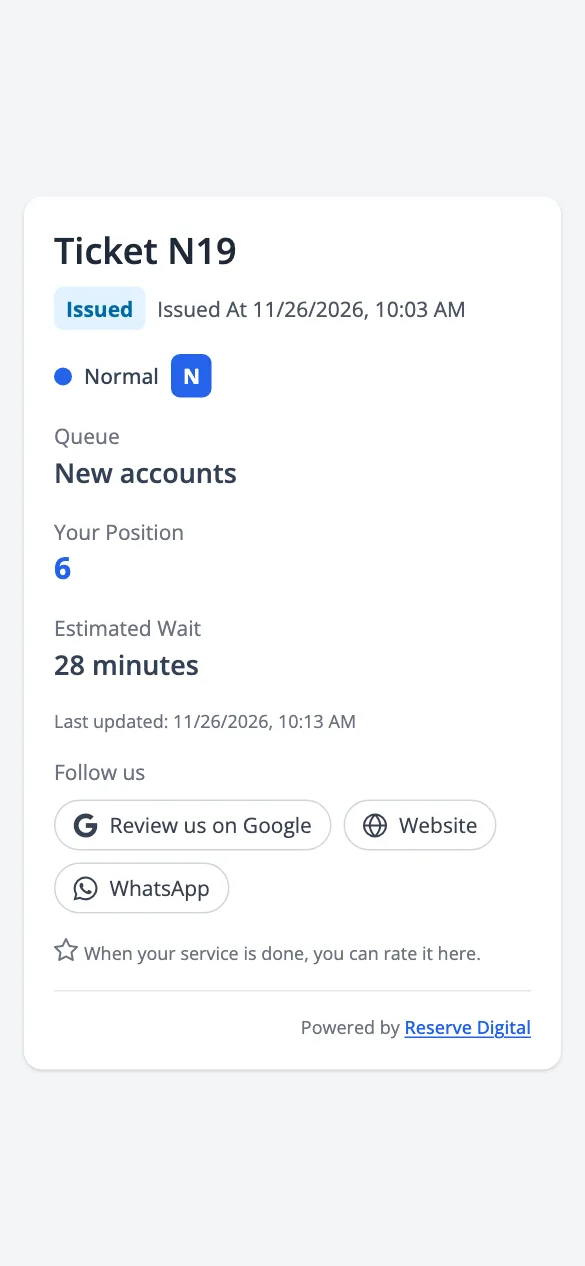
- The Ticket PN001 card 1 shows the status (Issued, Called, In Service, Completed or Canceled) and the time the ticket was issued.
- The priority shows with its color and prefix.
- Queue shows the queue's name.
- Your Position 2 shows the place in line. When nobody is ahead, it says "You're next".
- Estimated Wait 3 shows minutes, or hours and minutes. It says "less than 1 minute" when the ticket is next and "Not available yet" when the queue has no history yet.
- Last updated shows when the data was last refreshed.
- Follow us lists the company's social networks marked Show on the public ticket page. See Company.
How the place in line and the wait are calculated
The place in line and the wait are estimates. The real order depends on which service point calls and how it calls.
- Service points with Has Priority = Yes call by priority order and then by arrival. The others call by arrival only. So the place in line is an average weighted by how many active service points of each kind serve the queue.
- The estimated wait is the queue's average wait (from the moment a ticket was issued until it was called) over the non-canceled tickets of the last 14 days, multiplied by the place in line.
- Place and wait only show while the ticket is Issued. After the call, the page shows the service point.
When the ticket is called
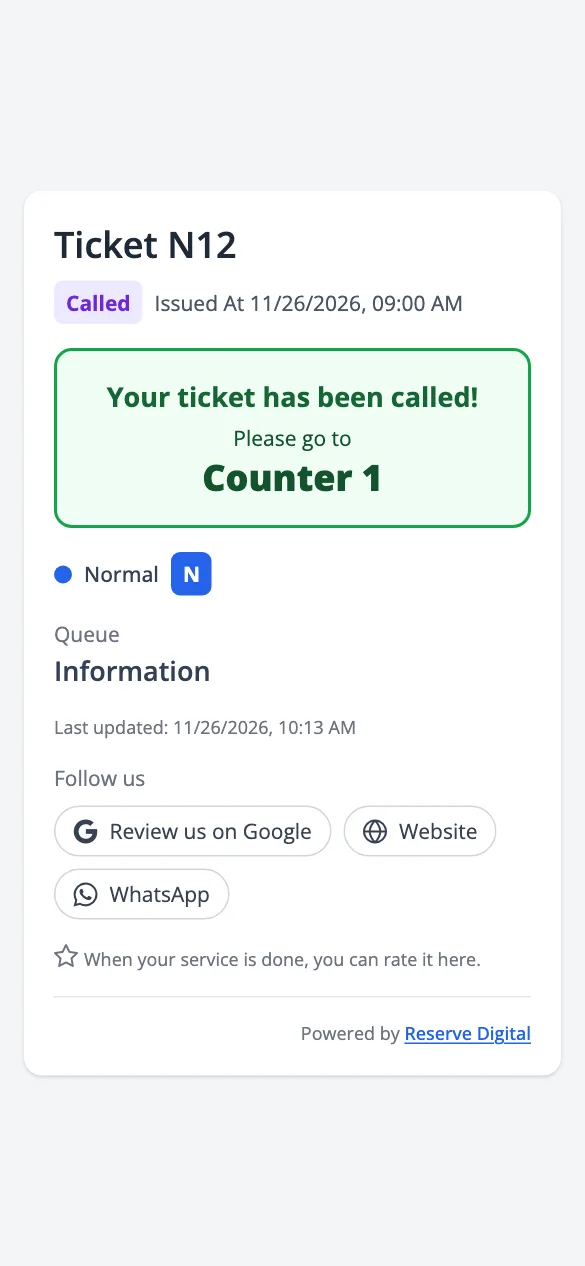
- The alert Your ticket has been called! 1 appears with "Please go to" and the name of the service point.
- The tab title starts with "Called!" and, on phones that allow it, the phone vibrates.
- During the service, the page shows "Being served at:" and the service point.
- The page gets changes right away. If the real-time connection fails, it keeps checking the ticket from time to time.
Rate the service
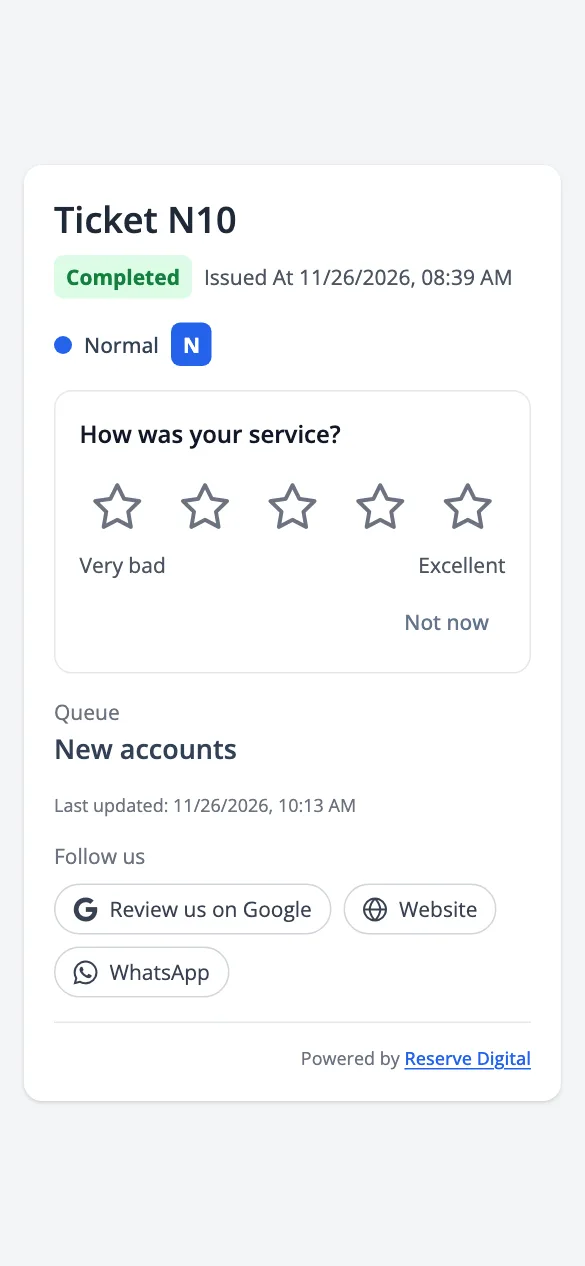
If the company turned on service rating, the page says while the customer waits: "When your service is done, you can rate it here." Once the ticket is completed, the question How was your service? appears.
- The customer taps 1 to 5 stars 1: Very bad, Bad, Okay, Good or Excellent.
- Not now 2 closes the request. A bar "Rate your service — it takes 2 seconds" lets them reopen it.
- After the score, the customer can pick reasons and write a comment of up to 500 characters, or tap Skip.
- At the end, "Thanks for your feedback!" appears and, if the company turned the invite on, the Review on Google button.
- Each ticket can be rated once, within 24 hours of completion. The details can be sent once, within 30 minutes of the score.
Tip: To turn on and follow ratings, see Ratings.
The in-person issuing screen
On the in-person issuing screen (Dashboard › Go to ticket generate screen, or the Windows app), the issued ticket also shows with the QR code of its tracking page. This screen needs a company user to be signed in.
- On Choose Ticket Group, tap the queue group.
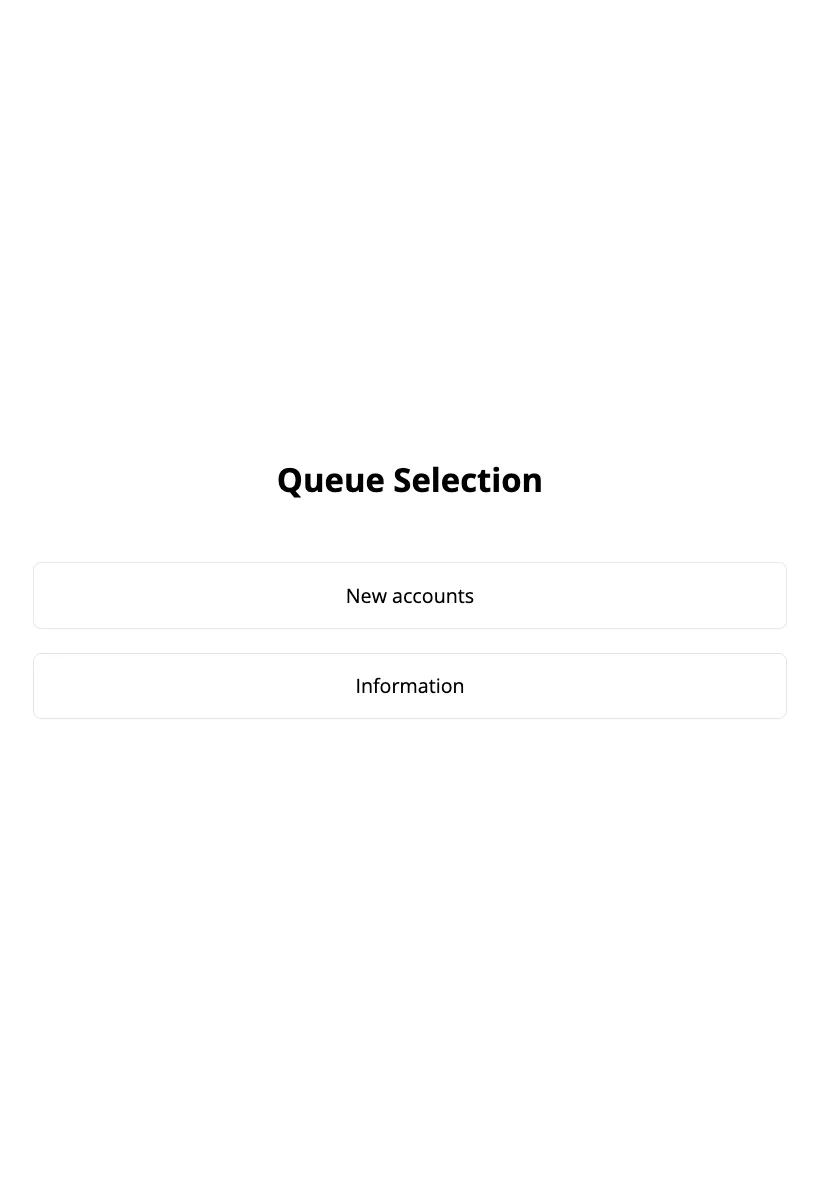
- On Queue Selection, tap the queue 1.
- On Withdraw your ticket, tap the priority.
- Ask the customer to scan the QR code shown with the ticket.
Troubleshooting
| Message | What it means |
|---|---|
| "Ticket not found" | The link is incomplete, or the ticket's queue or group was deleted. |
| "You are offline. We will update your ticket as soon as the connection is back." | The phone has no internet. The page updates by itself when the connection is back. |
| "Could not update your ticket; showing the last information. Trying again…" | A temporary failure. The page retries by itself. |
| "Couldn't send. Tap to try again." | The rating was not sent. Tap the stars or Send again. |
| "Too many attempts, please try again in a moment." | Too many submissions in a short time. Wait a little and try again. |
| The rating request does not appear | Rating is off, the ticket was not completed, it was already rated, or the 24-hour window is over. |
Related guides
- Ticket kioskTurn on the kiosk link so customers take tickets on their own, and print with the Windows app.
- Call and serveCall the next ticket, start and end service, redirect, cancel and generate tickets at the desk.
- RatingsTurn on service rating and follow scores, CSAT, reasons and comments.
- CompanyCreate a company, switch between companies, keep its settings up to date and delete it.
- Turn features on or offRatings, Google invite, kiosk, panels, voice and queues: what is optional and where to change it.