Turn features on or off
Several features are optional. This guide gathers in one place where each is turned on or off, whether it applies to the whole company, a group, a queue, a service point or a single screen, and what customers see afterwards.
Who can do it: Owner and Admin. A Default user sees the rating switches but cannot change them.
Overview
The table lists every optional feature, where it lives and how far the choice reaches.
| Feature | Where | Starts | Applies to |
|---|---|---|---|
| Ask customers for a rating | Company settings › Service rating | Off | Whole company |
| Invite to review on Google | Company settings › Service rating | On (works only with ratings on) | Whole company |
| Social link on the ticket page | Company settings › Social networks | As you add them | Each link |
| Kiosk link | Queue Group › Ticket kiosk | Off until Enable link | Group |
| Queue on the kiosk | Queue form › Display on totem | On | Queue |
| Spoken call announcement | Group form | Off | Group |
| Limit the panel by time | Group form | Off | Group |
| Queue panel | Queues tab of the group › queue panel | Off | Queue |
| Company panel | Company settings › Ticket panel | Off | Whole company |
| Queue or service point active | Queue or service point form › Active | On | Queue or service point |
| Priority service at a service point | Service point form › Has Priority | Yes | Service point |
| Own TV appearance for a group | Panel display › Use its own settings for this group | Off (follows the company default) | Group and its queues' panels |
| Video or pictures on the TV | Panel display › Media | None | Company default or one group |
| Message strip on the TV | Panel display › Messages | No messages | Company default or one group |
| Day of the week on the TV clock | Panel display › Clock | Time only | Company default or one group |
| Company logo | Company settings › Company › Upload logo / Remove logo | No logo | Whole company |
| Profile photo | My Profile › Add photo / Remove photo | No photo | Your account |
| Tutorial of each screen | Skip in the tutorial, Replay tutorial at the top of the screen | Starts on the first visit | Each person, per company (on a shared browser, the whole company) |
| TV sound, theme, language and full screen | Gear on the panel itself | Dark, sound after the first tap | That screen only |
Service rating
- Open the company switcher in the side menu and click Company settings.
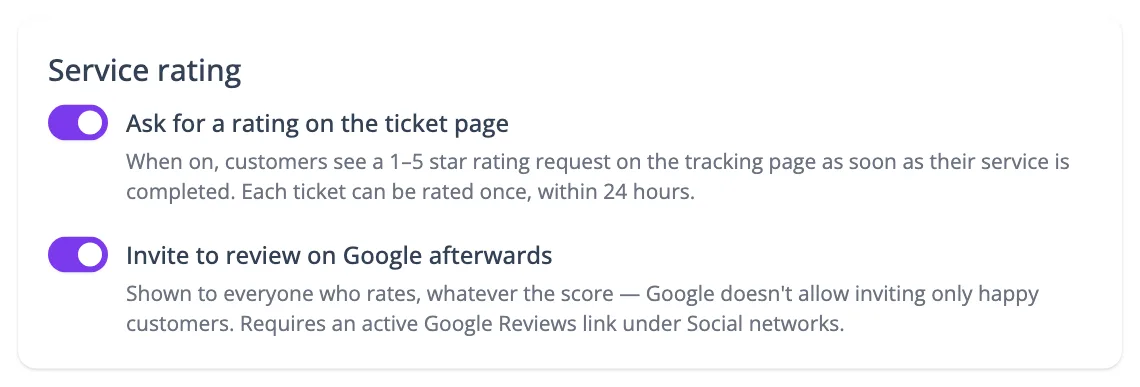
- Under Service rating, turn Ask for a rating on the ticket page 1 on or off.
- For the Google invite, turn Invite to review on Google afterwards 2 on or off.
- When off, the ticket page asks nobody for a score, the Ratings page shows "Service rating is turned off." and the dashboard satisfaction card offers Turn on ratings.
- Ratings already received stay stored.
- The Google invite only appears with ratings on and a Google Reviews link added under Social networks with Show on the public ticket page on.
- The choice applies to every queue and group of the company: ratings cannot be on for one queue only.
Tip: See how customers rate in Ratings.
Ticket page and QR code
Every ticket has its own tracking page, and its QR code shows on the kiosk screen and on tickets printed by the Windows app. That page has no switch: it exists for every ticket, and customers only open it if they choose to scan the code.
- To stop the page asking for a rating, turn ratings off (section above).
- To hide a social link from the page, edit it under Social networks and turn Show on the public ticket page off.
- Tickets created at the counter with Generate new ticket only show the QR code when printed by the Windows app; in the browser the attendant just tells the number.
Tip: See what customers see in Virtual queue and tracking.
Kiosk
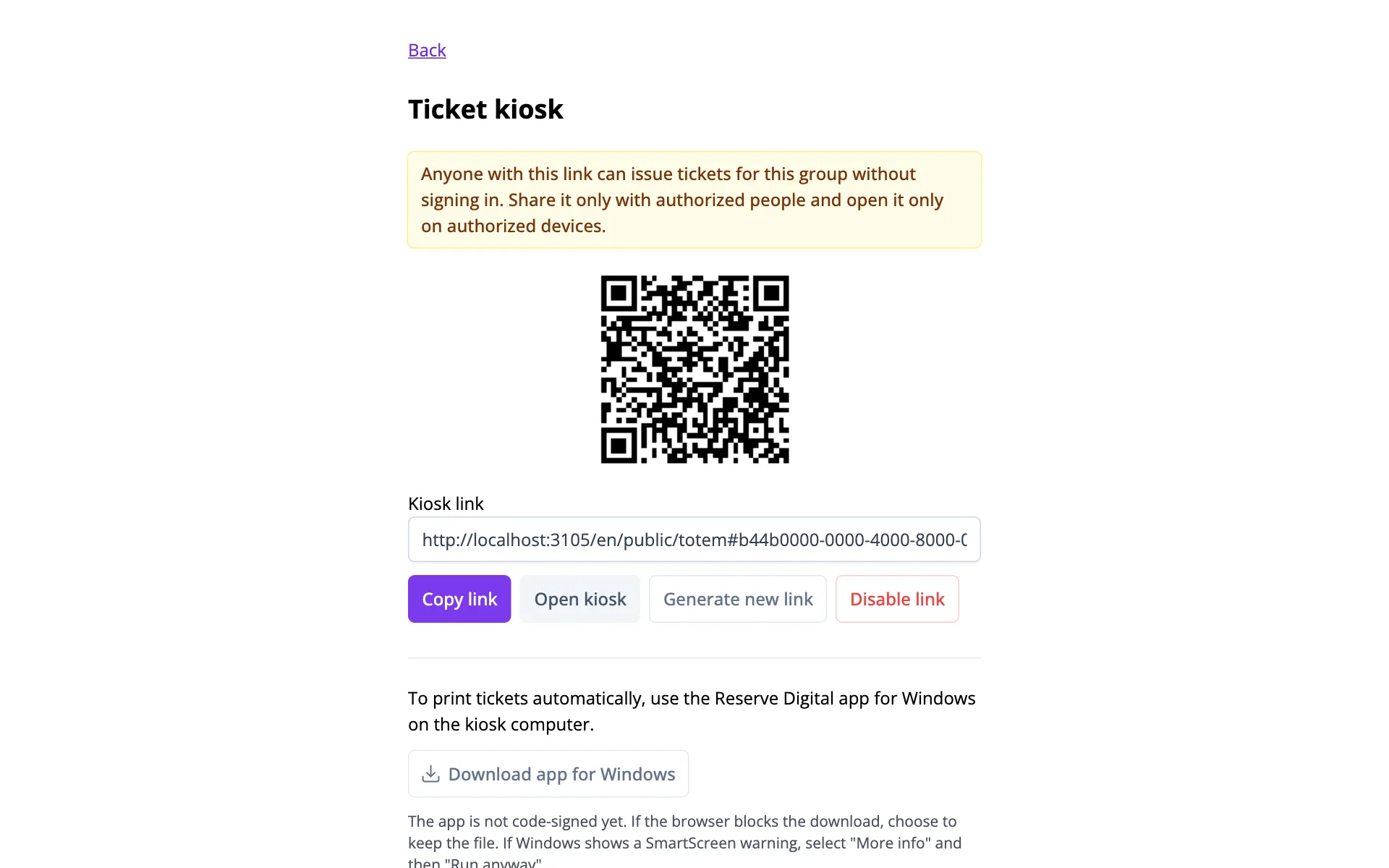
- In Queue Group, click Ticket kiosk on the group's row.
- To stop issuing tickets from the kiosk, click Disable link 6 and confirm. To bring it back, click Enable link.
- If the link leaked, click Generate new link 5: the old link stops working.
- Disabling the link only affects that group; tickets created by staff keep working.
- To take one queue off the kiosk without disabling the link, turn Display on totem off on the queue. See Queues and service points.
Panels and spoken announcement
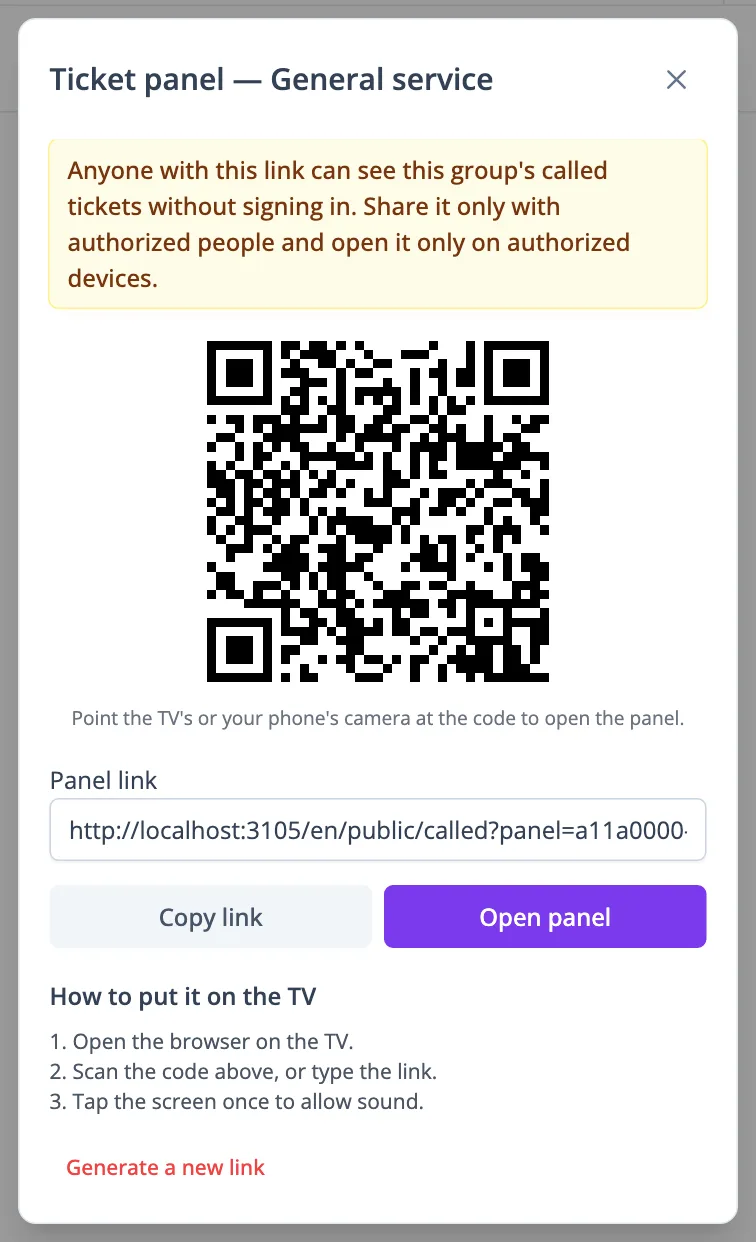
- Group panel: always exists. You can clear the calls on screen or Generate a new link (the old link stops working), but not turn it off.
- Queue panel and company panel: start off. Turn them on with Turn on the queue panel or Turn on the company panel and off with Turn off the panel in the link window.
- Spoken call announcement is in the group form: on, the panel reads the ticket, the priority and the service point; off, only the chime plays.
- Limit the panel by time hides calls older than the chosen hours, without canceling tickets.
- In Panel display, Media set to None takes the video or pictures off the TVs, an empty Messages shown field hides the message strip, and Time only takes the day off the clock. The company default reaches the company panel and every group without settings of its own; Use its own settings for this group gives one group (and its queues' panels) different choices. See TV panel appearance.
- The TVs themselves cannot change the layout, media, messages or clock: only the theme, previous calls, language, volume and full screen.
Tip: Details in TV panel and Queue groups.
Queues and service points
- Display on totem (queue): off, the queue disappears from the kiosk, but staff can still create tickets in it.
- Active (queue or service point, when editing): an inactive queue leaves the kiosk, and creating a ticket in it is refused ("Queue is not active"); an inactive service point cannot call and leaves Assigned Service Point. Reactivating counts toward the plan limit.
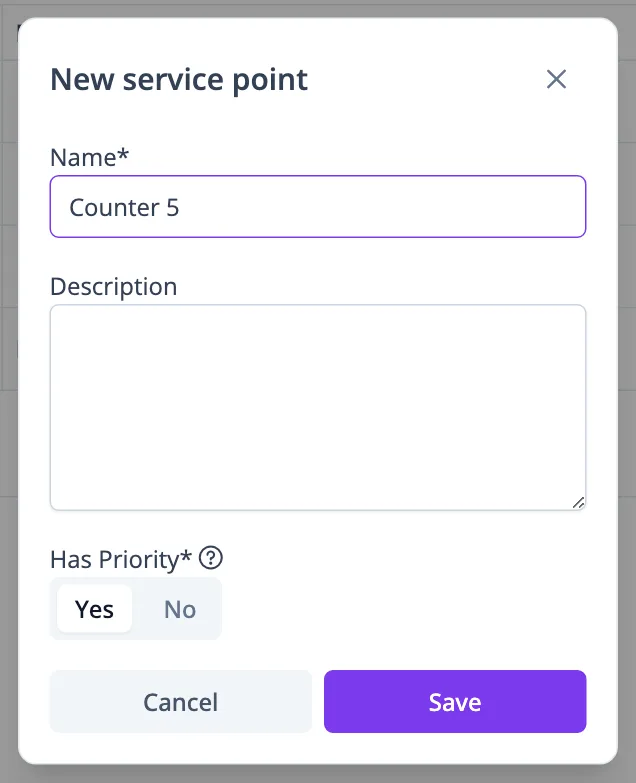
- Has Priority (service point) 3: Yes calls by priority order; No calls by arrival only.
What applies to one screen only
- On the TV, the panel's gear picks previous calls, theme, language, volume and full screen. The choice is stored in that browser and does not change other TVs.
- The TV only plays sound after one tap on the screen, a browser rule.
- On the Dashboard, Dismiss hides the getting-started checklist in this browser.
- In Panel display, the Theme and Screen of the Live preview only change the preview, never the TVs.
- A tutorial you finish or skip stops starting by itself for you in that company; Replay tutorial shows it again. See In-app tutorials.
Related guides
- RatingsTurn on service rating and follow scores, CSAT, reasons and comments.
- Virtual queueCustomers follow their ticket from the QR code: place in line, estimated wait, call and rating.
- Ticket kioskTurn on the kiosk link so customers take tickets on their own, and print with the Windows app.
- TV panelPut the group, queue or company panel on a TV, with adjustable sound, voice and theme.
- QueuesAdd your services, choose what shows on the kiosk and link the service points that serve them.
- Service pointsCreate service points, set priority service and link queues and people.
- Panel appearanceLayout, clock, video or pictures and messages of the TV panels, for the company or a group.
- In-app tutorialsWhen the guided tutorials appear, how to move through or skip them and how to replay them.