Plans and subscription
Every company needs a plan to work: the free one or a paid one. This guide shows how to choose, change, cancel and reactivate your subscription, and what happens to your limits in each case.
Who can do it: The Owner and Admin users choose and change the plan. Only the Owner cancels, reactivates, goes back to free, changes the currency and opens Manage subscription.
Free or paid plan
A new company stays deactivated until you choose a plan in Billing. The free plan has no charge and asks for no card. Paid plans unlock higher limits and can start with a free trial.
The prices and limits of each plan are shown on the cards of the Billing screen and on the pricing page.
Read the plan cards
- Open the company switcher in the side menu and click Billing.
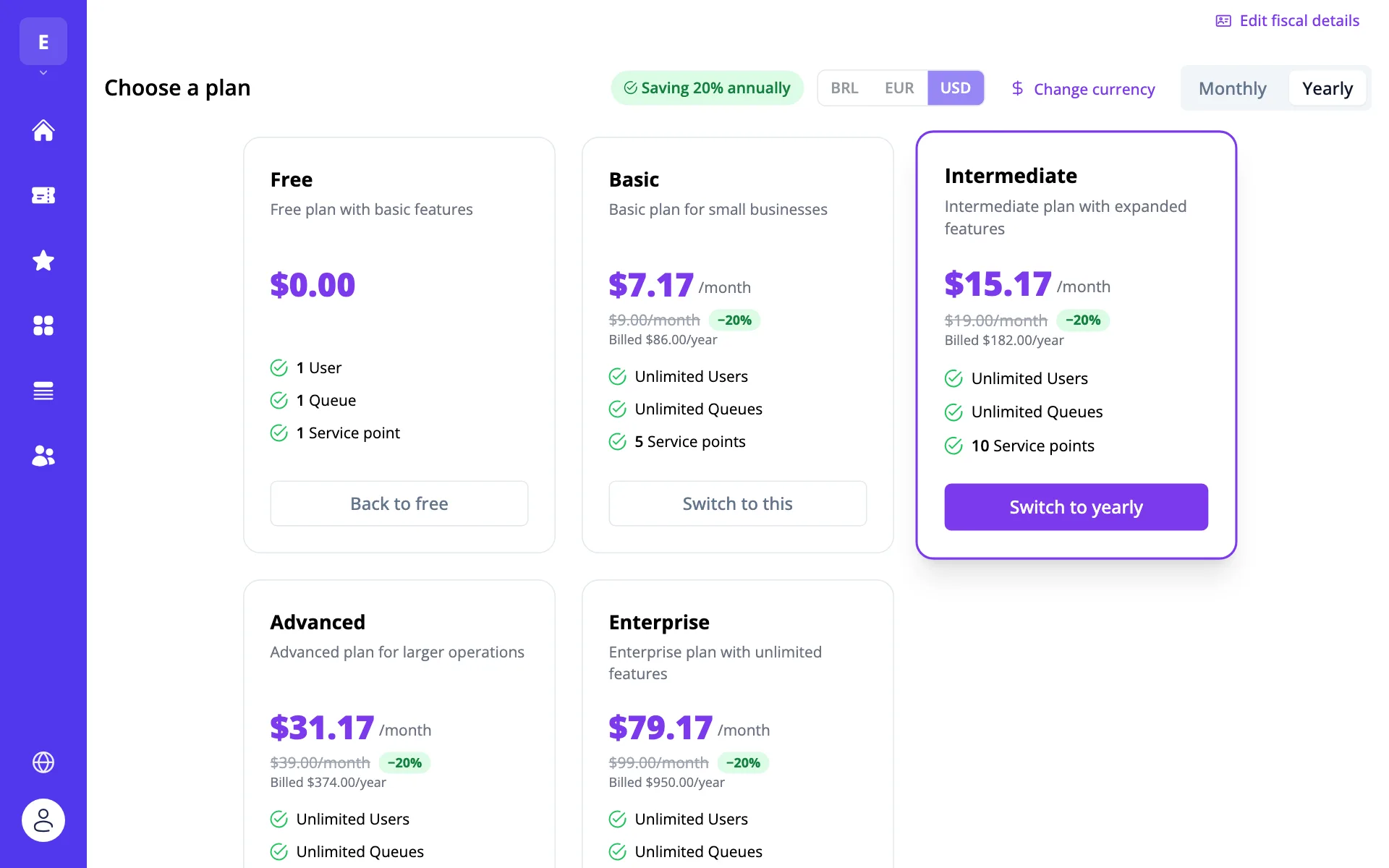
- Choose Monthly or Yearly 1; the screen opens on Yearly.
- Check the currency 2 the prices are shown in.
- Read the card's limits 4: users, queues and service points.
- Click the button on the card 3 of the plan you want.
- "Unlimited" (for example, Unlimited Queues) means no limit for that item.
- On yearly billing, the card shows the price per month, the struck-through monthly price and the total charged per year (Billed …/year). A chip shows how much you save on yearly billing.
- Badges: Most popular, Current plan and Next plan (the plan scheduled for the end of the period).
- Every company member counts as a user, the Owner included, and so does every pending invite that is still valid.
- Priorities and queue groups don't depend on the plan.
Currency
Before your first subscription, you pick the currency in the selector above the cards. Once you subscribe, the currency is fixed: Stripe locks a customer's currency at the first subscription. Only the Owner can change it, and changing it cancels the current subscription and starts a new one in the chosen currency, with no refund for the time already used.
- In Billing, click Change currency.
- Choose the new currency, read the notice and click Yes, change currency.
- Type the phrase I confirm I want to change currency and cancel my current subscription exactly.
- Click Yes, change currency again.
- If the plan is a paid one, finish the payment on the Stripe page.
Start on the free plan
- In Billing, find the free plan card.
- Click Start for free.
- Wait for Free plan activated.; the company is unlocked.
Tip: You can move to a paid plan at any time from the same cards.
Free trial
Paid plans can start with a 15-day free trial. The date yours ends is shown on the subscription card, under Trial ends, with the days left.
- There is one trial per company. Once it ends, future subscriptions of the same company have no trial.
- The card is asked for on the payment page, but nothing is charged today: the charge happens when the trial ends.
- When the company can still get a trial, the plan card shows Start free trial and the Subscribe now without trial link.
- Upgrading during the trial keeps the trial on the new plan for the same days left, without restarting them.
- Cancelling during the trial: the trial runs until its end date and the subscription ends instead of becoming paid.
- Going back to free during the trial: when the trial ends you move to the free plan, with no charge.
Subscribe to a paid plan
Before the Terms, Reserve Digital checks the company's billing details (address and tax ID). If something is missing, the Billing details window opens right there, on the Billing screen. Once you save, the subscription goes on to the Terms. See Complete the billing details.
- In Billing, choose Monthly or Yearly.
- Click Start free trial or Subscribe on the plan card.
- Read the summary of the Terms and click I agree, continue.
- Fill in your card details on the secure Stripe page and confirm.
- Wait for Subscription created successfully! and click Dashboard or View subscription.
- On the confirmation page, Confirming your plan… shows while the plan is checked. Then you see Your plan is active., or We received your subscription. Your plan shows as active in a moment. when the confirmation takes longer.
- Without a free trial, the summary of the Terms says the charge happens today.
- If you give up on the Stripe page, you see Payment cancelled. Click Back to plans to try again.
- The subscription renews automatically until it is cancelled.
Upgrade
Moving to a more expensive plan (Upgrade on the card) takes effect at once: the prorated difference for the time left is charged right away to the card on file and the new limits apply immediately. This charge cannot be undone.
First you see Change plan? with a summary; confirm with Yes, change plan. When the card is charged directly you see Upgrade applied!; in some cases you confirm the payment on a Stripe page and come back to the app. Items that were deactivated by a downgrade come back, oldest first, up to the new limit.
Downgrade or go back to free
Moving to a cheaper plan (Switch to this) charges nothing now: the change is scheduled for the end of the current period and you keep your current plan until then. The subscription card shows Will change to the new plan and the date. Moving from yearly to monthly on the same plan is also scheduled.
Back to free is for the Owner only. The paid plan stays active until the end of the period; after that you move to the free plan and its limits. There is no refund: you use the time you already paid for. Confirm with Schedule downgrade.
- When the new limit is lower than what you use, the app keeps the oldest items and deactivates the extra queues and service points.
- Members above the limit lose access to the company. The Owner never does.
- Queues and service points you deactivated yourself are not affected.
- A later upgrade brings back the items deactivated by the downgrade.
- A plan change replaces any pending cancellation or previously scheduled change.
Cancel and reactivate
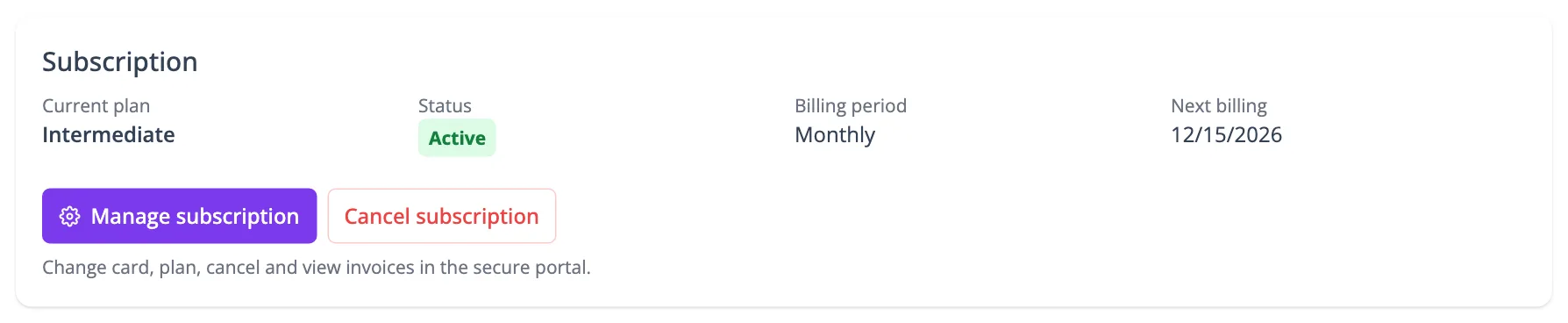
The Subscription card shows the plan, the status 1, the billing period and the Next billing date 2. Cancelling doesn't end the subscription at once: it stays active until the end of the period already paid and then doesn't renew.
- In Billing, on the Subscription card, click Cancel subscription 4.
- Read the date until which the subscription stays active.
- Confirm with Yes, cancel (or click Keep subscription to back out).
- To undo it before the end date, click Reactivate subscription.
- After cancelling you see Subscription cancellation scheduled. and the card shows Your subscription will be cancelled on with the date.
- When that date comes, the company is deactivated until you choose a plan again.
- Manage subscription 3 opens the Stripe portal. See the next section.
Manage subscription: card and invoices
Manage subscription opens the secure Stripe portal, where the Owner changes the payment card, sees the invoice history and can cancel at the end of the period. To change plans, use the plan cards on the Billing screen. Invoices are also listed on the screen itself; see the invoices and billing guide.
Past-due payment
If a charge fails, the status becomes Past due (or Unpaid). The company keeps working while Stripe tries to charge again. Change the card in Manage subscription to settle it.
If the subscription ends up cancelled, the company is deactivated until you choose a plan again.
Who can do what
| Action | Owner | Admin | Default |
|---|---|---|---|
| See plans, subscription and invoices | Yes | Yes | No |
| Start for free, subscribe, upgrade or downgrade between paid plans | Yes | Yes | No |
| Go back to free | Yes | No | No |
| Cancel and reactivate the subscription | Yes | No | No |
| Manage subscription (Stripe portal) | Yes | No | No |
| Change currency | Yes | No | No |
Troubleshooting
| Message | What to do |
|---|---|
| Fiscal data required | Click Fill in now: the Billing details window opens on the same screen. Once you save, the subscription goes on. |
| Queue limit exceeded for your current plan. Upgrade your plan to create more queues. | Upgrade, or deactivate a queue you don't use. The same applies to service points and users. |
| The service is busy applying plan limits right now. Please try again in a moment. | Wait a few seconds and try again. |
| Another billing change for this company is already in progress. | Wait for the other change to finish and reload the page. |
| You don't have permission to view this company's billing. | Only the Owner and Admin users can open billing. |
| The text doesn't match. Type the exact phrase shown to confirm. | Type the phrase again, exactly as shown. |
Related guides
- CompanyCreate a company, switch between companies, keep its settings up to date and delete it.
- Invoices and billingSubscription invoices, Stripe receipts and Brazilian tax documents (NFS-e).
- Users and rolesRoles, invites, each person's service points and removing access.
- Getting startedThe whole first setup in the right order, from your account to the TV panel.