
Users and roles: invites, permissions and service points
Everyone on the team joins the company by invite and gets a role. In this guide you see what each role can do, invite people, follow pending invites, change roles, link service points and remove access.
Who can do it: Owner and Admin. The invited person accepts the invite with their own account.
The three roles
- Owner: the person who created the company. Each company has a single owner, who cannot be removed or have their role changed. There is no ownership transfer.
- Admin: sets up the service, the team and billing, like the owner, except for the subscription actions and deleting the company.
- Default: serves customers. Sees the Dashboard and the Tickets screen, calls and serves tickets at the service points linked to them and generates tickets.
Invites offer only the Admin and Default roles. Nobody can change their own role.
What each role can do
| Action | Owner | Admin | Default |
|---|---|---|---|
| See the Dashboard and the Tickets screen, generate tickets | Yes | Yes | Yes |
| Call and serve tickets | Yes, at linked service points | Yes, at linked service points | Yes, at linked service points |
| See the Ratings screen, with customer comments | Yes | Yes | No |
| Set up queue groups, queues, priorities, service points, panels (including Panel display) and kiosk | Yes | Yes | No |
| Invite people, change roles and remove members | Yes | Yes | No |
| Edit company details, the logo, social networks and service rating | Yes | Yes | No (sees the company details read-only) |
| See plans, invoices and tax details; subscribe or change plan | Yes | Yes | No |
| Manage, cancel or reactivate the subscription, change currency and go back to free | Yes | No | No |
| Delete the company | Yes | No | No |
Tip: The Owner and every Admin are linked automatically to every new service point. The Default role only calls tickets at the service points someone linked them to.
The users screen
Open Users in the side menu. The table shows each person's profile photo (or a default icon), Name, E-mail, Phone, Role and Options. The phone appears in international format, with the country code apart from the number, such as +1 2025550100.
- List Pending Invites opens the invites you sent and the button to invite.
- The Role column shows Owner, Admin or Default.
- The key button changes the role. See Change the role.
- Service Points links the person to service points. See Link service points to a person.
- Delete removes the person's access to the company. See Remove a member.
- Filter searches by Name, E-mail, Phone or Role (All, Admin or Default). The Phone filter has the country selector, like the profile.
Tip: On a phone, tap ⋮ on the person's card to see Service Points, Role and Delete.
Invite a person
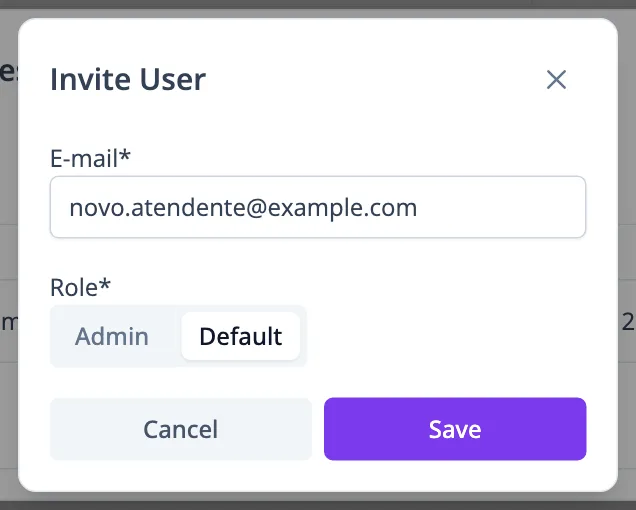
- Click List Pending Invites.
- Click Invite User.
- Type the person's E-mail 1, for example
carla@example.com. - Choose the Role 2: Admin or Default.
- Click Save 3.
The role starts at Default. The invite shows up in the list with its code, role and Expire Date, and the person gets an e-mail with the code and a link to accept.
Pending invites
- Each invite is valid for 1 day. An expired invite has a light red background.
- Send invite again sends the e-mail again and shows Invitation sent again. You must wait at least 1 minute between two sends.
- Delete removes the invite. Without it, the person cannot join the company.
- Each e-mail can have only one pending invite per company.
- Until it expires, a pending invite counts against the plan's user limit, together with the members and the owner.
Accept an invite (for the invited person)
- Open the Reserve Digital - Company Invitation e-mail and click Click here to accept the invitation.
- Sign in with the same e-mail that received the invite. If you have no account yet, create one at Sign Up with that e-mail.
- In the company picker, open the Pending invites tab.
- Click the green confirm button on the company's row.
- Type the 6-character code from the e-mail if it is not filled in.
- Click Confirm.
The company now shows under the Choose company tab. When you open it from the e-mail link, the code is already filled in. The code only works for the account with the invited e-mail. See also Create an account and sign in.
Change the role
- Click the key button on the person's row.
- Choose Admin or Default under Role.
- Click Save.
An Admin can promote, demote or remove other admins. The Owner's role never changes, and nobody changes their own role: in those cases the button is dimmed and explains why.
Link service points to a person
- Click Service Points on the person's row.
- Move the service points they work at to the Linked service points column.
- Click Save.
The right-hand list becomes exactly the person's service points. Active ones show for them under Assigned Service Point on the tickets screen. See Service points.
Remove a member
- Click Delete on the person's row.
- Confirm with Delete.
The person loses access to this company. Their account still exists and can be invited again. The Owner cannot be removed, and nobody removes themselves.
The plan's user limit
The number of users depends on the plan and counts the owner, the members and the pending invites that have not expired. The plan cards under Billing show the Users limit, and so does the pricing page.
Past the limit, the system answers: "User limit exceeded for your current plan. Upgrade your plan to add more users." If the plan changes to one with fewer users, the people over the limit lose access until you move back to a bigger plan. The owner never loses access. See Plans and subscription.
Troubleshooting
- "User has already been invited": a pending invite already exists for that e-mail. Use Send invite again or delete the old invite.
- "You must wait at least 1 minute before resending the invitation.": wait a minute and try again.
- "Too many invitations were sent to this e-mail recently. Please try again later.": wait a while before inviting again.
- The invite code does not work: check that you signed in with the invited e-mail and that the invite has not expired. If it expired, ask for a new send.
- "We cannot deliver e-mail to this address": the address rejected messages. Check the e-mail with the person or use another one.
- "The company owner can't be removed." and "You can't change your own role.": these are fixed company rules.
Related guides
- Service pointsCreate service points, set priority service and link queues and people.
- Account and sign-inCreate your account, confirm your e-mail, sign in, recover your password and accept invites.
- CompanyCreate a company, switch between companies, keep its settings up to date and delete it.
- Plans and subscriptionFree or paid plan, free trial, upgrades, downgrades, cancelling and currency.
- Call and serveCall the next ticket, start and end service, redirect, cancel and generate tickets at the desk.