
Ticket history: find and check tickets
The Tickets screen keeps every ticket of the company. Besides calling and serving, you can filter the list to find a ticket and open its history with every recorded action.
Who can do it: Every role: Owner, Admin and Default.
The ticket list
- In the side menu, click Tickets. The list shows the newest tickets first.
- The columns are Ticket, Queue, Priority (with the priority's color), Status, Issued At, Called At, Ended At and Options.
- Click the header of Queue, Priority, Status, Issued At, Called At or Ended At to sort by that column. Click again to reverse the order.
- The list loads 20 tickets at a time. Click Load more to see the next ones. At the end, "All tickets loaded" appears.
- Canceled tickets show with a red background. On phone cards, they are faded.
- On smaller screens the list becomes cards, with the actions under the ⋮ button.
Filter the list
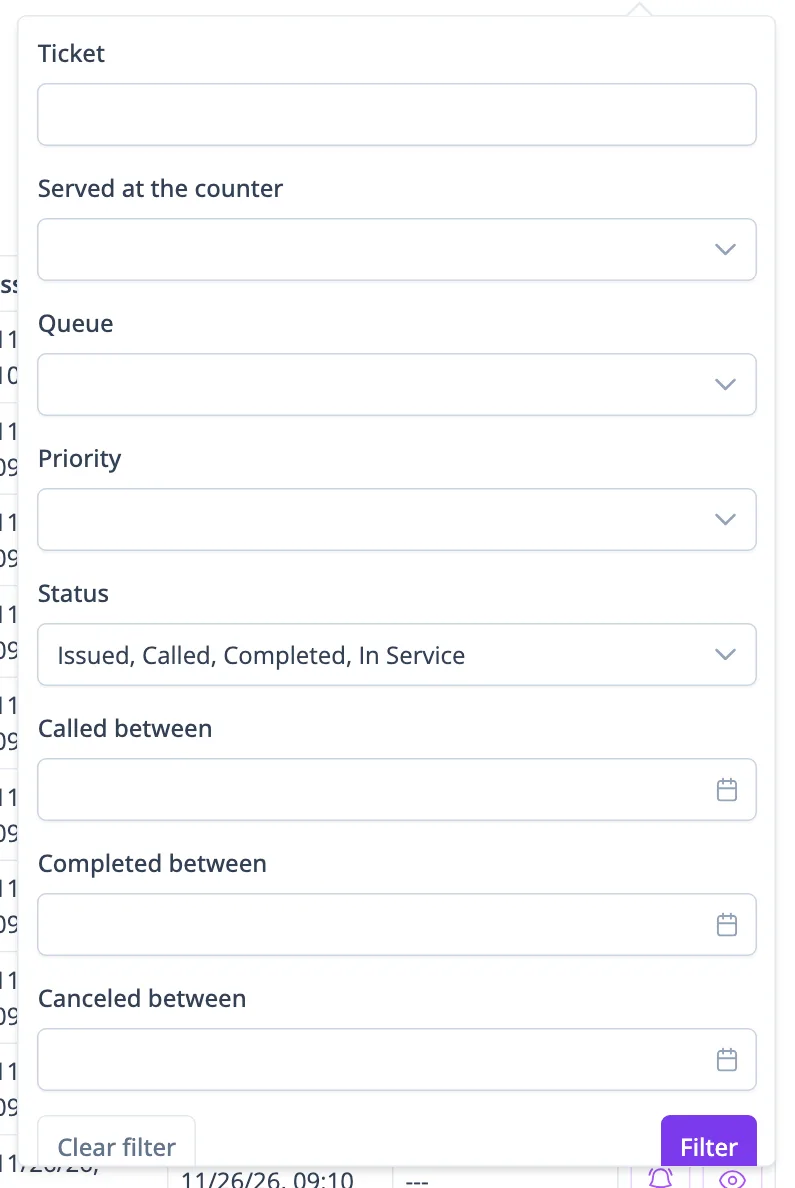
- Click Filter at the top of the screen.
- In Ticket 1, type one or more numbers separated by commas, for example
1, 15, 32. - In Served at the counter 2, pick one or more service points.
- In Queue 3 and Priority 4, pick the options. The lists are grouped by queue group.
- In Status 5, tick the statuses you want to see.
- If you want, pick a period in Called between, Completed between or Canceled between 6.
- Click Filter 7.
- The Ticket field only uses the numbers: letters are ignored, so
PN001searches for number 1. Because numbering is per queue group, the same number can bring tickets from different groups or from before a count reset. - By default, Status includes every status except Canceled. To see canceled tickets, tick Canceled.
- When you pick a period, the matching status is ticked for you. For example, Canceled between ticks Canceled.
- The periods do not accept future dates.
- All filters apply together: a ticket must match every one of them.
- Clear filter goes back to the default.
- The ticket, service point, queue, priority and status filters are kept in the page address. You can bookmark the link or send it to a coworker in the company.
Tip: There is no filter by issue date. To find tickets created on a given day, sort by the Issued At column.
See a ticket's history
- On the ticket's row, click the Get Ticket Info eye. On a phone, tap ⋮ and then Get Ticket Info.
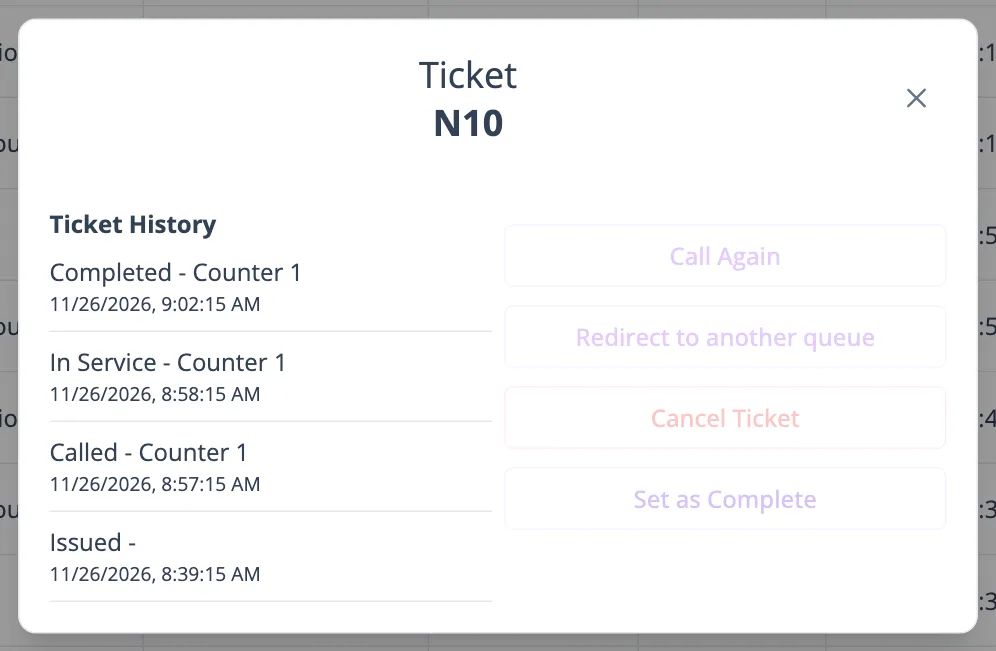
- Check the ticket number at the top of the window 1.
- Read the Ticket History 2, from the oldest action to the newest.
- Each history line shows the action (Issued, Called, In Service, Redirected, Completed or Canceled), the queue or service point involved, the notes and the date and time.
- Each new call of the same ticket shows as another Called line.
- On Completed or Canceled tickets, the action buttons are disabled.
- The name of whoever performed each action shows in the history of the Rating for ticket panel, opened from the score of a rated ticket. See Ratings.
Automatic system notes
Some tickets are canceled by the system itself. In those cases the history shows a note:
| Note | Why |
|---|---|
[SYSTEM] Sequence reset by administrator | Someone used Reset count on the group. The waiting and called tickets were canceled. |
| "[SYSTEM] Canceled because its queue was deleted" | The ticket's queue was deleted. |
| "[SYSTEM] Canceled because its queue group was deleted" | The queue group was deleted. |
| "[SYSTEM] Canceled because its priority was deleted" | The ticket's priority was deleted. |
| "[SYSTEM] Canceled because its service point was deleted" | The ticket's service point was deleted. |
| "[SYSTEM] Canceled because the company was deleted" | The company was deleted. |
The customer's score on the ticket
When the customer rates the service, the ticket gets a badge with a star and the score, for example ★4, next to its number. Click the badge to open Rating for ticket, with the score, the reasons, the service data and the history.
The customer's comment is shown only to the Owner and Admin. Default users see the score and the reasons.
Real-time updates
The list receives new tickets and status changes while the tab is open. With a period active in the filters, new tickets do not enter the list. After changing the filters, click Filter again to see the updated list.
Export or print
The Tickets screen has no export and no print of the list. For consolidated numbers, use the Dashboard.
Troubleshooting
| Situation | What to do |
|---|---|
| The ticket I am looking for does not appear | Check the Status filter: by default canceled tickets are left out. Click Load more if the ticket is old. |
| "Could not load this data." | The list did not load. Click Try again or reload the page. |
| The number filter brings tickets from other groups | Numbering is per queue group. Combine it with the Queue filter. |
Related guides
- Call and serveCall the next ticket, start and end service, redirect, cancel and generate tickets at the desk.
- RatingsTurn on service rating and follow scores, CSAT, reasons and comments.
- DashboardLatest tickets, attendance per service point, volume, satisfaction and queue waiting time.
- Queue groupsNumbering, prefixes, spoken announcement, clearing the panel and resetting a group's count.