Ticket panel on a TV
The ticket panel is a page that shows, on a TV or monitor, the ticket being called now and the previous calls, with a chime and, if you want, a spoken announcement. It needs no sign-in: just open the link in the TV's browser.
Who can do it: Get, replace, clear and turn off links: Owner and Admin. Watch the panel: anyone with the link.
Three kinds of panel
| Panel | What it shows | Where the link is |
|---|---|---|
| Group | The calls of every queue in the queue group. | Queue Group › Ticket panel icon on the group's row. Every group already has its link. |
| Queue | Only the calls of one queue. | Queue Group › arrow on the group's row › Queues tab › Ticket panel icon on the queue's row. It starts off: click Turn on the queue panel. |
| Company | The calls of every group, each with the name of its group. | Company settings › Ticket panel card › Ticket panel icon. It starts off: click Turn on the company panel. |
All three can run at the same time, on different TVs. Each one has its own link.
What the three panels show next to the calls (layout, clock, video or pictures and messages) is set in TV panel appearance: a queue panel shows the same as its group's panel, and the company panel shows the company default.
- Queue panels, the company panel and the spoken announcement are optional; the group panel always exists. See Turn features on or off.
Get the panel link
- In the side menu, open Queue Group.
- On the group's row, click the Ticket panel icon.
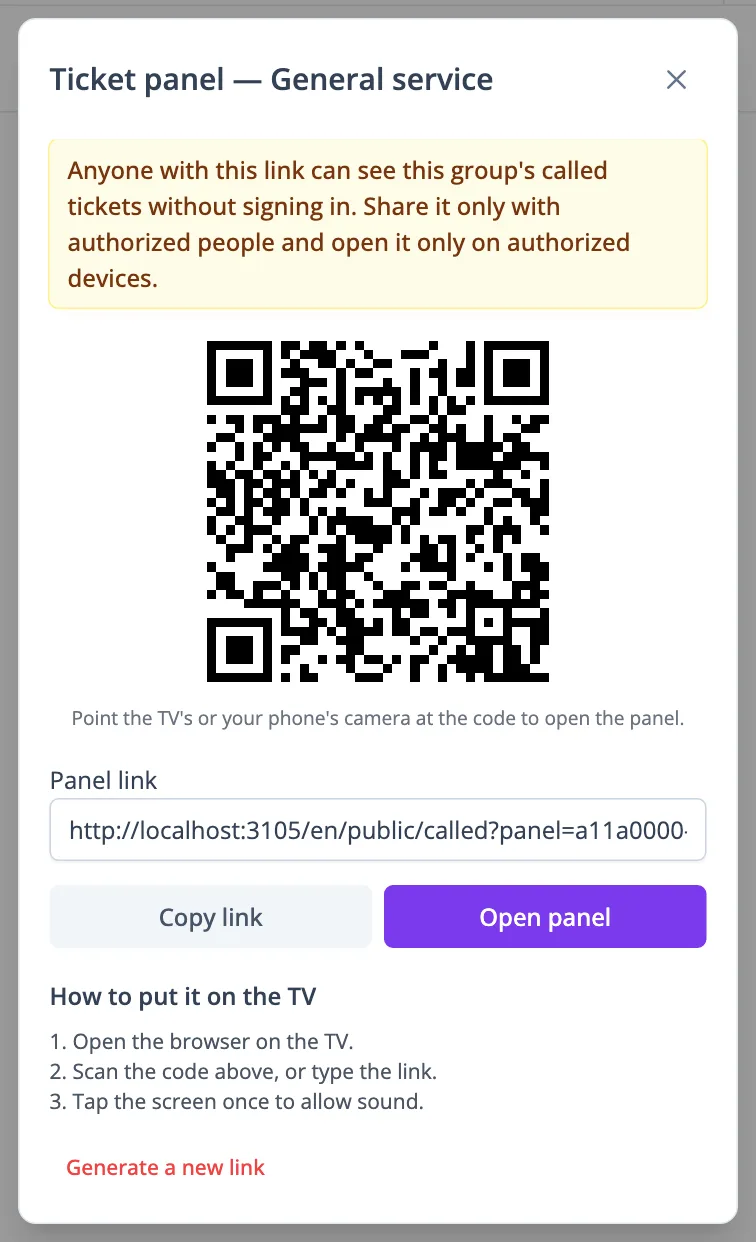
- On the TV, scan the QR code 1 with the camera or type the address shown in Panel link 2.
- To send the link to someone else, click Copy link 3. "Panel link copied" appears.
- To check the panel on this computer, click Open panel 4.
- Follow the steps under How to put it on the TV 5.
- Generate a new link 6 replaces the link. See Replace, clear or turn off.
- On the Dashboard, the Owner and Admin also have the shortcut Get the ticket panel link, which opens Queue Group.
- Change what this panel shows opens the group's settings in Panel display. See TV panel appearance.
Heads-up: Anyone with this link can see this group's called tickets without signing in. Share it only with authorized people and open it only on authorized devices.
How to put it on the TV
- Open the browser on the TV.
- Scan the code, or type the link.
- Tap the screen once to allow sound.
- If you want, open the Panel settings gear and tap Full screen.
Tip: Browsers only play sound after a tap or click on the page. Until someone taps, the panel shows "Sound is off — tap the screen to enable".
What the TV shows
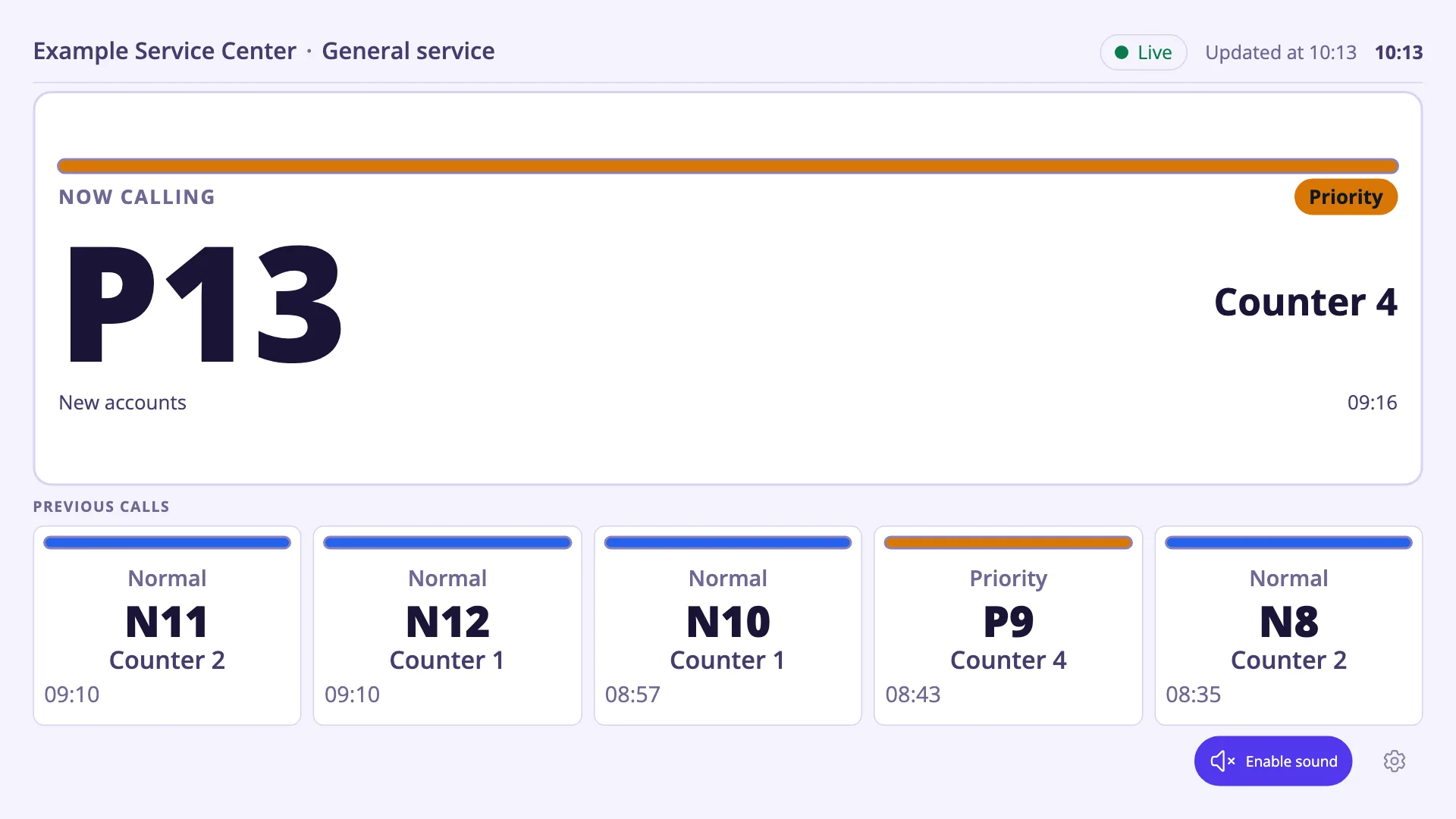
- Now calling 1 highlights the last ticket called, with its priority and service point. On the company panel the group name appears too.
- When a ticket is called again, it returns to the highlight with how many times it was called, for example "Call 2 · 1st at 10:05".
- Previous calls 2 lists the tickets called before, newest first. Tickets stay there after they go into service or are completed.
- The sound button 3 shows Enable sound or Mute.
- The gear 4 opens Panel settings.
- The top shows the company, the group (and the queue, on a queue panel), the connection state (Connecting…, Live, Reconnecting…), "Updated at" and the clock.
- With the Side by side layout, the called ticket sits on the left and the history on the right, on screens at least 1024 px wide.
- If a video or pictures were chosen, they play next to the history, and the called ticket stays the main thing on screen. The video is always muted.
- If there are messages, a strip shows them one at a time, below the header or above the sound and settings buttons.
- With Day and time, the clock also shows the abbreviated day of the week.
- Before the first call, "No tickets called yet" appears.
Sound and spoken announcement
- Every call plays a chime.
- If the group has Spoken call announcement turned on, the panel also reads the call out loud, for example "Ticket PN001, please go to Desk 1". The option is in the group's settings. See Queue groups.
- On the company panel, each call follows the option of its own group.
- You set the volume in the panel settings. The TV's own volume counts too.
- Sound only works after a tap on the screen. Tap once after opening or reloading the panel.
Screen settings
- Tap the Panel settings gear.
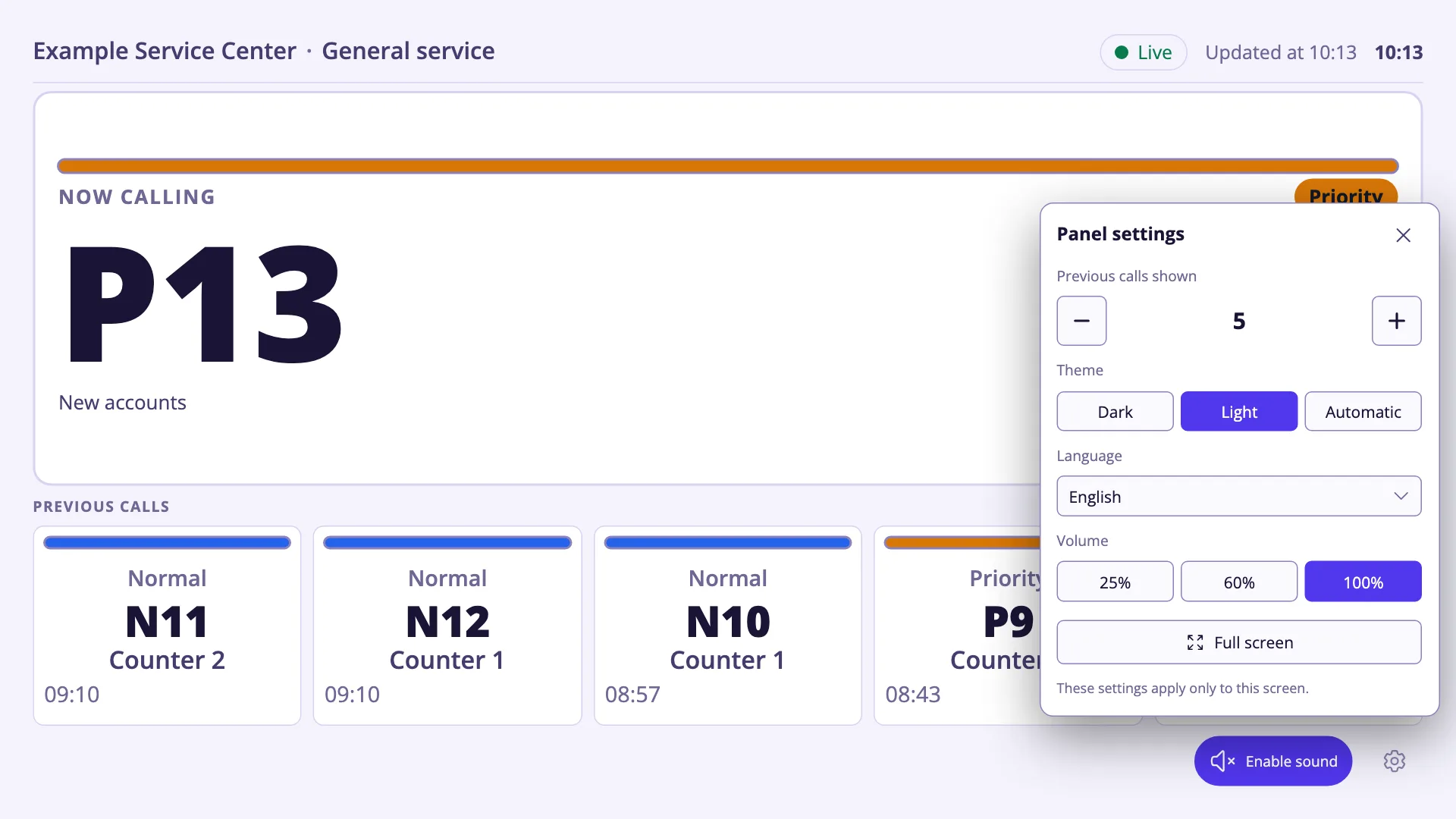
- In Previous calls shown 1, use − and + to show 1 to 8 calls. The default is 5.
- In Theme 2, choose Dark, Light or Automatic. The default is Dark.
- In Language 3, choose the language of the panel's texts.
- In Volume 4, choose 25%, 60% or 100%.
- Tap Full screen 5 to fill the whole screen.
- "These settings apply only to this screen." They are kept in the TV's browser. Another TV with the same link keeps its own.
- Automatic follows the device's light or dark mode.
- If the screen cannot fit all the calls you asked for without shrinking the ticket too much, the panel says "Showing 4 of 6: this screen cannot fit more without shrinking the ticket below a legible size."
- The sheet also says: "Layout, video, pictures, messages and clock are set by the company administrator in Panel display." These are not changed on the TV. See TV panel appearance.
Replace, clear or turn off
- Generate a new link: the current link stops working. Every TV that used the old link stops updating, shows "Panel not found" and has to be opened again with the new link.
- Clear panel: the tickets currently on the panel stop being displayed. No ticket is canceled and numbering continues. Clearing the group's panel also clears the panels of the group's queues. Clearing a queue panel or the company panel does not clear the others. For a group, the button is on the group's row in Queue Group.
- Turn off the panel (queue and company): the link stops working and the TV shows "Panel not found". When you turn it back on, a new link is generated.
- Reset count on the group also clears the panel and cancels the tickets that are waiting or were called and have not gone into service. See Queue groups.
- Every one of these actions asks for confirmation.
Limit the panel by time
Without a limit, the panel shows the calls of the current numbering until someone clears the panel or resets the count. In the group's settings, turn on Limit the panel by time and choose Hours shown (1 to 24, default 12) to hide older calls. That way the board does not open in the morning still showing yesterday. It only changes what the panel displays: no ticket is canceled and the numbering is untouched.
Reading from a distance and accessibility
- The highlighted ticket uses large type, and its size adapts to the screen.
- The panel never shrinks previous calls below a legible size: it shows fewer calls instead of small type.
- The Dark and Light themes use high-contrast text. Pick the one that works best with the room's lighting.
- A call is announced by sound and, with the spoken announcement on, by voice too, besides the text on screen.
- You choose each priority's color in the priority settings, which warn when the contrast is low. See Priorities.
- To reduce marks on screens that stay on all day, the content shifts a few pixels every minute.
- A video chosen in Panel display always plays muted, so it never covers the call chime or the spoken announcement.
Troubleshooting
| Message on the TV | What to do |
|---|---|
| "Panel not found" with "Panel code: …" | The link was replaced or the panel was turned off. Ask for the current link and open it again. The code helps support identify the old link. |
| "Incomplete panel link" | The address has no panel code. Open the full link from the QR code or with Copy link. |
| "Panel unavailable" | The TV cannot reach the server. The link may still be valid: check the TV's network before asking for a new link. |
| "No connection to the server" | The tickets shown may be out of date. The panel reconnects by itself. Check the TV's network. |
| "Could not refresh the tickets. Retrying…" | A temporary failure. The panel retries by itself. |
| "Sound is off — tap the screen to enable" | Tap the TV screen once. |
| The panel does not speak the calls | Turn on Spoken call announcement in the group and check that sound is enabled on the TV. Some TV browsers have no text-to-speech. |
If the problem persists, contact support.
Related guides
- Queue groupsNumbering, prefixes, spoken announcement, clearing the panel and resetting a group's count.
- QueuesAdd your services, choose what shows on the kiosk and link the service points that serve them.
- CompanyCreate a company, switch between companies, keep its settings up to date and delete it.
- Call and serveCall the next ticket, start and end service, redirect, cancel and generate tickets at the desk.
- PrioritiesCall order, prefix and color of each priority in a group.
- Turn features on or offRatings, Google invite, kiosk, panels, voice and queues: what is optional and where to change it.
- Panel appearanceLayout, clock, video or pictures and messages of the TV panels, for the company or a group.