Profile and security
In your profile you keep your personal details up to date, look after your account's security and stay in control of your data. Everything here applies to your account in every company you belong to.
Who can do it: Any user, with or without a company.
Open your profile
Open your avatar menu at the bottom of the side menu (on a phone, the menu in the top corner) and click My Profile. On the company picker, use My account. The profile works even with no company selected.
The profile shows your photo, Name, E-mail and Phone. Without a photo, it shows a default icon. See Profile photo.
- Click Update Profile to change your first name, last name and phone.
- Click Change e-mail to change your sign-in e-mail.
- Click Change password to change your password.
- Use Connected accounts to connect or disconnect Google.
- Click Export my data to download a copy of your data.
- Click Delete my account to erase the account.
Profile photo
- Open My Profile.
- Click Add photo (or Change photo, if you already have one).
- Choose a PNG, JPEG or WebP image.
- Wait for Profile photo updated.
- The photo is cropped to a centered square and resized before upload, to at most 512 px and 1 MB. The file you pick can have up to 20 MB.
- Remove photo asks Remove your profile photo? and, once confirmed, shows Profile photo removed. The default icon takes its place.
- Your photo shows on the avatar menu of the side menu. In each company you belong to, the Owner and the Admin users also see it next to your name on the Users screen.
Edit your name and phone
- Click Update Profile.
- Adjust Name and Last Name.
- Pick the country in the Phone selector and type the number with its area code.
- Click Save.
- All three fields are required. Without them you see Please fill in your first name, last name and phone number.
- The phone is stored in international format, with the country code (for example,
+15555550123). - The profile shows the phone with the country code apart from the number, such as
+1 5555550123. - After saving you see Profile updated successfully.
- While editing, the password and connected-account buttons are hidden: save or cancel to use them.
Change your password
- Click Change password.
- Type the Old password.
- Type the New Password, with at least 8 characters, one letter and one number.
- Repeat the new password in Confirm your password.
- Click Save.
After the change, every session is ended, including the current one. Sign in again with the new password. Forgot your current password? Use Forgot my password on the sign-in screen; see the account and sign-in guide.
Set a password (account created with Google)
If you only sign in with Google, the profile shows Set a password instead of Change password. When you click it, we send a code to your e-mail and you follow the Forgot my password flow to create the password. When you save it, every session ends and you sign in again. With a password you can sign in without Google and disconnect it if you want.
Change your e-mail
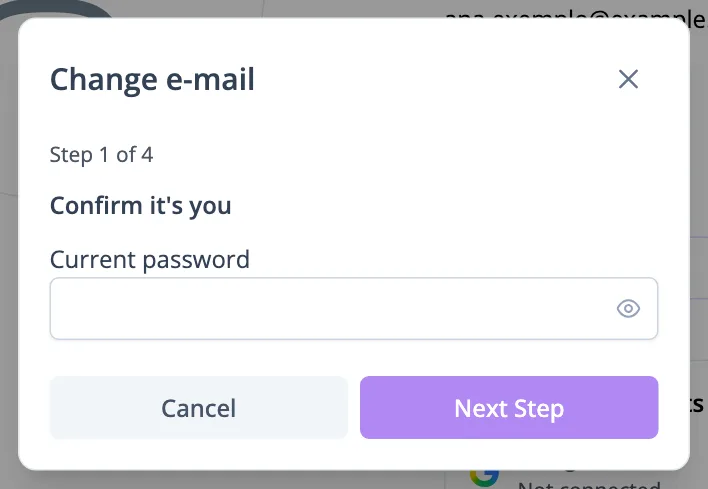
The e-mail change has four steps and confirms both addresses before switching. The window shows Step 1 of 4 and so on.
- Click Change e-mail.
- In Confirm it's you, type your Current password 1 and click Next Step 2. If the account only signs in with Google, click Continue with Google.
- In New e-mail, type the New e-mail address and click Send code.
- In Check your current e-mail, type the 6-character code sent to your current e-mail and click Next Step.
- In Check your new e-mail, type the code sent to the new address.
- Click Change e-mail and wait for E-mail changed.
- After the change, your other sessions are ended. From then on, sign in with the new e-mail.
- Typed the new address wrong? Use Use a different e-mail: the request is cancelled and you start over.
- No access to your current e-mail? Click I no longer have access to this e-mail: only support can change it, after confirming the account is yours.
E-mail change safeguards
- While a change is open, the profile shows An e-mail change to … is in progress until …, with Continue and Cancel the change.
- The old address gets a notice with a link. If it wasn't you, use Stop the change while it is open, or Undo the change once it is done, until the date shown in the notice (7 days). This also signs out every session and disables the password; you then create a new one with Forgot my password.
- Only one e-mail change is possible every 7 days. Before that you see An e-mail change is already open or happened in the last 7 days.
- The codes expire after a few minutes. If one expires, start the change again.
Connected accounts (Google)
The Connected accounts area shows Connected as and the Google account's e-mail, or Not connected. In the Windows app it shows Connect Google in the browser.
- In Connected accounts, click Connect.
- Type your password and click Next Step.
- Type the 6-character code sent to your e-mail.
- Click Continue to Google and choose the Google account.
- Wait for Google account connected.
- To disconnect, click Disconnect, type your password and confirm. Your other sessions are ended.
- If Google is your only way to sign in, the button is disabled: Google is your only way to sign in. Set a password before disconnecting it.
- If someone connects or disconnects a Google account without your knowledge, the notice e-mail has a Secure my account button.
Export my data
In the Privacy and account deletion area, Export my data downloads the file reserve-digital-meus-dados.json, a machine-readable copy of your personal data. Then you see Your data has been downloaded.
- The file contains: first name, last name, e-mail, phone and whether it was confirmed; account status and the dates it was created, updated and last signed in; the date and version on which you accepted the Terms and the Privacy Policy; completed e-mail changes; connected Google accounts, with their dates; the export date and a note on the file's scope.
- The file does not contain company data, billing data or tax documents. That data belongs to the company; ask for it through the officer's e-mail listed in the Privacy Policy or the support page.
- This is the only export available in the app.
Delete my account
Deleting the account anonymizes your personal data, ends every session and removes you from every company. It cannot be undone.
- In the Privacy and account deletion area, click Delete my account.
- Read the notice and type the phrase DELETE MY ACCOUNT (pasting doesn't work).
- Click Delete permanently.
- Type your current password and click Delete permanently again.
- Wait for Account deleted; you go back to the home page.
- If you are the Owner of any company, deletion is blocked: You still own a company. Transfer the ownership or delete the company before deleting your account. There is no ownership transfer in the app, so delete the company first. See the company guide.
- Account that only signs in with Google: instead of the password, click Continue with Google to confirm it's you and type the 6-character code sent to your e-mail.
- Wrong password: Wrong password. The account was not deleted. After many attempts, wait a few minutes.
Troubleshooting
| Message | What to do |
|---|---|
| Incorrect password. | Check your current password. If you forgot it, use Forgot my password on the sign-in screen. |
| This is already your e-mail. | Type an address different from the current one. |
| You started too many e-mail changes today. Try again tomorrow. | Wait until the next day. |
| This e-mail change expired or was cancelled. Start over. | Click Change e-mail and start again. |
| We can't deliver e-mail to your current address, so we can't confirm the change. Contact support. | Reach us through the support page. |
| Too many wrong attempts. Wait a few minutes and try again. | Wait a few minutes before trying again. |
| Google sign-in is unavailable right now. | Try later or use your password. |
| Choose a PNG, JPEG or WebP image. | Save the photo in one of these formats and try again. |
| This image is too large. Choose one under 20 MB. | Pick a smaller file. |
| This image could not be read. Try another file. | The file may be damaged. Pick another one. |
| The photo could not be uploaded. Check your connection and try again. | Check the internet connection and try again. |